So you want to play Nintendo 3DS games on your PC or Android phone. Azahar is the emulator you need. It is free, actively updated, and works on Windows, Mac, Linux, and Android.
This guide walks you through everything from downloading Azahar to loading your first game. No experience required.
What Is Azahar and Why Should You Use It?
Azahar is a Nintendo 3DS emulator software that lets your computer or phone run 3DS games. It was built from the code of Citra, the original 3DS emulator that shut down in 2024. Two developer teams continued working on Citra after it closed and eventually merged their work into one combined project called Azahar.
If you used Citra before, Azahar will feel immediately familiar. The interface is nearly identical and your old save files work without any conversion. If you are completely new to 3DS emulation, Azahar is the best place to start right now. To understand the full history of why Citra shut down and how these two emulators compare, see our Citra vs Azahar comparison guide.
What You Need Before You Start
Before downloading anything, check that your device meets the minimum requirements. These are taken directly from the official Azahar GitHub page.
For PC (Windows, Mac, Linux):
- Windows 10 (64-bit), or modern 64-bit Linux, or macOS 11+
- CPU with a single-core Passmark score above 1,800 (most CPUs from 2016 onward will pass this — if you are unsure, search your CPU model on cpubenchmark.net)
- OpenGL 4.3 or Vulkan 1.1 GPU support
- Minimum 2GB of RAM, 4GB recommended
For Android:
- Android 10.0 or higher (64-bit)
- Snapdragon 835 or better (or equivalent chipset)
- OpenGL ES 3.2 or Vulkan 1.1 GPU support
- Minimum 2GB of RAM, 4GB recommended
If your device falls below these specs, Azahar will likely run slowly or crash on demanding games. Lighter games may still work but performance will not be good.
Step 1: Download Azahar
Go to the official Azahar download page to get the right version for your device: Download Azahar Emulator.
Windows: Download the MSYS2 installer. This is what Azahar officially recommends for most Windows users. The MSVC build is also available but is mainly for specific technical environments — if you are not sure which to pick, use MSYS2. Note: the MSVC build also requires the Visual C++ Redistributable package installed on your system. If you get an error about a missing .dll file after installing, that is why download the redistributable from Microsoft and install it first.
Android: Install from the Google Play Store for the easiest experience with automatic updates. Alternatively, download the Vanilla APK. The Vanilla build loads games faster because it uses a different file management method, but you have to update it manually. For most beginners, the Play Store version is the right choice.
Mac: Download the universal build, which works on both Apple Silicon (M1, M2, M3) and Intel Macs without any extra steps.
Linux: Install via Flathub, which is the officially recommended format. An AppImage is also available on the releases page if you prefer not to use Flatpak. Two AppImage variants exist the standard one and a Wayland version. Use the standard one unless you specifically need native Wayland support.
Always download from the official source. Do not use third-party APK sites or download mirrors these often host outdated or modified versions.
A note on iOS: Azahar does not support iOS and the developers have stated there are no plans to add it. If you are on iPhone, check for separate Citra builds that exist for iOS through RetroArch, but that is outside the scope of this guide.
Step 2: Install Azahar
On Windows, run the installer and follow the on-screen steps. It installs like any normal program. Open Azahar from your Start menu or desktop shortcut when done.
On Android (Play Store), the app installs like any other app. Open it after installation and tap through the first-time setup screens.
On Android (Vanilla APK), you will need to allow installation from unknown sources. Go to Settings → Apps → Special App Access → Install Unknown Apps and enable it for your file manager. Then open the downloaded APK and install it.
On Mac, open the downloaded zip file and drag the Azahar app to your Applications folder. The first time you open it, right-click the app icon and choose Open rather than double-clicking macOS may block it otherwise since it is not from the App Store. After that first launch you can open it normally.
On Linux (Flatpak), run flatpak install flathub org.azahar_emu.Azahar in your terminal. For the AppImage, right-click the downloaded file, go to Properties, make it executable, then double-click to run.
Step 3: First Launch and Permissions (Android Only)
When you open Azahar on Android for the first time, it will ask for several permissions. Grant all of them — notifications, microphone (for games that use the 3DS microphone), camera, and storage access.
When it asks you to select a User Folder, this is important. This folder is where Azahar stores all your save files, settings, and installed content. Tap Select, create a new folder called Azahar in your internal storage, choose it, then tap Use This Folder and OK.
Do not delete this folder later or you will lose all your saves.
Step 4: Add Your Games
Azahar does not come with games. You need your own legally dumped 3DS game files, commonly called ROMs.
What file formats does Azahar support?
- .3ds — the most common format, natively supported as of Azahar version 2124.3 (January 2026). If you have an older version of Azahar, .3ds files will not show up in your library and you will need to rename them to .cci
- .cci — identical to .3ds internally, just a different extension. If renaming is ever needed, it is literally just changing the file extension — the file itself does not change
- .cia — a different format used for installed content. CIA files cannot just be placed in your games folder; they must be installed through the Azahar menu (covered below)
Your game files must be unzipped. Azahar cannot read compressed game files — extract them with 7-Zip or WinRAR first.
Adding games on PC:
Create a folder on your computer to store your games, for example C:\3DS Games. Put your game files there.
Open Azahar. The main window will be empty. Double-click the empty area, navigate to your games folder, and select it. Azahar scans the folder and displays all compatible games. That is your library.
Adding games on Android:
Copy your game files to a folder on your phone — for example a folder called 3DS Games in your internal storage. Open Azahar, tap the option to add a game directory, navigate to that folder, and select it. Azahar will find all compatible files.
Installing CIA files:
In Azahar on PC, go to File in the top menu bar and choose Install CIA. Navigate to your .cia file and install it. On Android, tap the main menu and look for Install CIA. After installation the game or DLC appears in your library automatically
Step 5: Essential First Settings
Before you start playing, go through the basic settings. On PC, go to Emulation in the top menu and click Configure. On Android, tap the three-line menu and go to Settings.
Graphics API — start with OpenGL
This is the most important choice and it is worth explaining honestly. Azahar has two graphics options: OpenGL and Vulkan.
OpenGL is the stable, well-tested option. The official Azahar compatibility list is built entirely on OpenGL, and all compatibility testing is done against it. For a beginner, OpenGL is the right starting point because it is predictable and works consistently across hardware.
Vulkan is faster in theory and gives better performance on many setups, particularly AMD GPUs and Android. However, Azahar’s own developers note Vulkan is still considered experimental — there are known issues with crashes, shader problems, and inconsistent behaviour depending on your hardware. Once you are comfortable with Azahar and your games are running well, try switching to Vulkan and see if it improves things. If it causes problems, switch back to OpenGL.
Internal Resolution — increase it for sharper visuals
The 3DS natively renders at a very low resolution that looks blurry on modern screens. Increasing internal resolution makes games look dramatically sharper. Start at 2x — this gives a noticeably better image without much performance cost. On a powerful PC you can try 3x or 4x. On Android or a low-end PC, stay at 2x or even 1x if performance is poor.
Skip Right Eye Render — turn this on
The original 3DS displayed separate images to each eye to create a 3D effect. On a flat screen you only see one image, so rendering the right eye is completely wasted effort. Enabling this setting skips it entirely and gives up to 50% better performance for free. Almost every user should have this on.
Confirm Exit — turn this off
Every time you close a game, Azahar asks “are you sure?” by default. This gets old fast. Find the Confirm Exit option in settings and disable it.
Step 6: Set Up Your Controller
A controller makes 3DS games feel much better than a keyboard.
On PC:
Connect your controller via USB or Bluetooth before opening Azahar. Xbox controllers work without any extra software on Windows 10 and 11. PlayStation controllers generally work natively on Windows 11 but may need the DS4Windows app on Windows 10.
Open settings and go to Controls. You will see a button layout matching the 3DS. Click each button on screen, then press the matching button on your controller to map it. Do this for everything A, B, X, Y, L, R, ZL, ZR, Start, Select, D-pad, and both analog sticks.
One common issue on PC: if you launch Azahar through Steam, Steam Input can interfere and hide your controller from the emulator. If your controller is not showing up, close Steam entirely or go into Steam settings and disable Steam Input for Azahar specifically.
On Android:
If you connect a Bluetooth gamepad or a controller clip before opening Azahar, it will be detected automatically. Go to Settings → Controls to map the buttons.
If you are playing without a controller, Azahar shows on-screen touch buttons by default. You can adjust the size and position of these in the display settings.
For a detailed controller setup walkthrough covering PS4, PS5, Xbox, and 8BitDo controllers, the process in Azahar is nearly identical to Citra our controller setup guide covers each one step by step.
Step 7: Load Your First Game
Click or tap any game in your library to launch it.
The first time you open a game, Azahar compiles shaders for it. This is normal and only happens once per game. You may see brief stutters or freezes during this first session — that is shader compilation working in the background, not a problem with the game. The next time you launch the same game it runs smoothly because the compiled shaders are saved to disk.
If the game does not start or shows a black screen, see the troubleshooting section below.
Coming From Citra? How to Transfer Your Saves
If you used Citra before and want to keep your save files, the process is straightforward. Azahar uses the same save format as Citra so no conversion is needed.
On PC:
Your Citra saves are typically in C:\Users\[YourName]\AppData\Roaming\Citra\sdmc. The AppData folder is hidden by default in File Explorer, click View and enable Hidden Items to see it.
Copy the entire sdmc folder. In Azahar, go to File → Open Azahar Folder. Paste the sdmc folder there, replacing the existing one. Restart Azahar and your saves will be there.
On Android:
Find your Citra user folder this is whatever folder you chose when you first set up Citra (commonly a folder named “Citra” in internal storage, but it may be different). Copy the sdmc folder from that Citra folder and paste it into your Azahar user folder that you created in Step 3.
We have a more detailed guide specifically on migrating saves, including edge cases, on our Citra saves to Azahar guide.
Common Problems and Quick Fixes
Game shows a black screen
This is usually a graphics API issue. If you are on OpenGL, try Vulkan. If you are on Vulkan, switch back to OpenGL. Also make sure your graphics drivers are fully up to date — an outdated GPU driver causes many black screen issues.
Game is not appearing in the library
Make sure the file is unzipped and in .3ds or .cci format. If you are on an older Azahar version, rename .3ds files to .cci. Try removing the game folder in settings and re-adding it.
Azahar is running slowly
Enable Skip Right Eye Render if you have not already this is the biggest free performance gain available. Lower internal resolution to 1x or 2x. Make sure you do not have background programs eating CPU or RAM.
Controller not being detected
Connect your controller before opening Azahar. If you launched through Steam, disable Steam Input. Try a different USB port. For Bluetooth, try un-pairing and re-pairing.
Game crashes immediately on launch
Your game file may be encrypted. Azahar requires decrypted game dumps. If a file worked on Citra but not on Azahar, encryption may be the reason. You will need a decrypted version of the game.
For more in-depth crashing fixes, our Citra crashing fixes guide covers many issues that apply equally to Azahar.
What Games Work on Azahar?
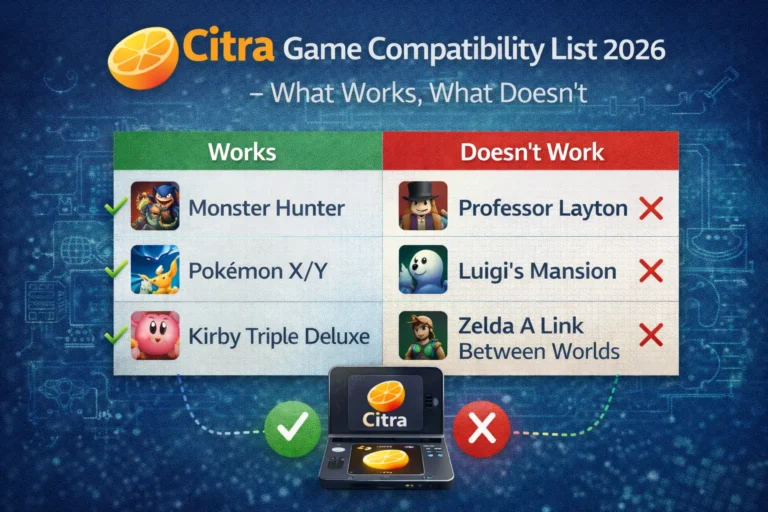
Azahar has strong compatibility with the 3DS library. Major titles like the Pokemon main series, Zelda 3DS games, Mario Kart 7, Super Mario 3D Land, and Fire Emblem Fates and Awakening run well. A small number of games have graphical glitches or crash, and compatibility continues improving with each update since Azahar is actively developed.
To check a specific game before you commit to playing it, see our Azahar and Citra compatibility list which covers hundreds of games by genre and title.
Setup Checklist
Before you start playing, confirm each of these:
- Azahar downloaded from the official source only
- Game files are unzipped and in .3ds or .cci format
- Games folder added in Azahar settings
- Graphics API set to OpenGL to start (switch to Vulkan later if you want to test performance)
- Internal resolution set to 2x or higher
- Skip Right Eye Render turned on
- Controller fully mapped in settings
- Confirm Exit turned off
That is everything. Azahar is ready.
Once your games are running well and you want to go further, the next step is reading our Azahar best settings guide to understand how to squeeze better performance and visuals out of the emulator for your specific hardwar