
Citra crashes can be frustrating, especially when they happen during gameplay or while launching a game. These crashes usually occur due to outdated software, incompatible system settings, corrupted game files, low system resources, or graphics driver issues.
The good news is that most Citra crash problems can be fixed with simple troubleshooting steps, whether you’re using Windows, macOS, Linux, or Android.
Quick Answer:
Citra emulator usually crashes because of outdated graphics drivers, unsupported or corrupted game files, low RAM, damaged user data, or antivirus conflicts. The quickest fixes are updating Citra, reinstalling graphics drivers, deleting the user folder, and running Citra as an administrator.
Common Causes of Citra Emulator Crashes
Understanding why Citra crashes is the first step to fixing the problem. Here are the most common culprits behind Citra emulator crashes:
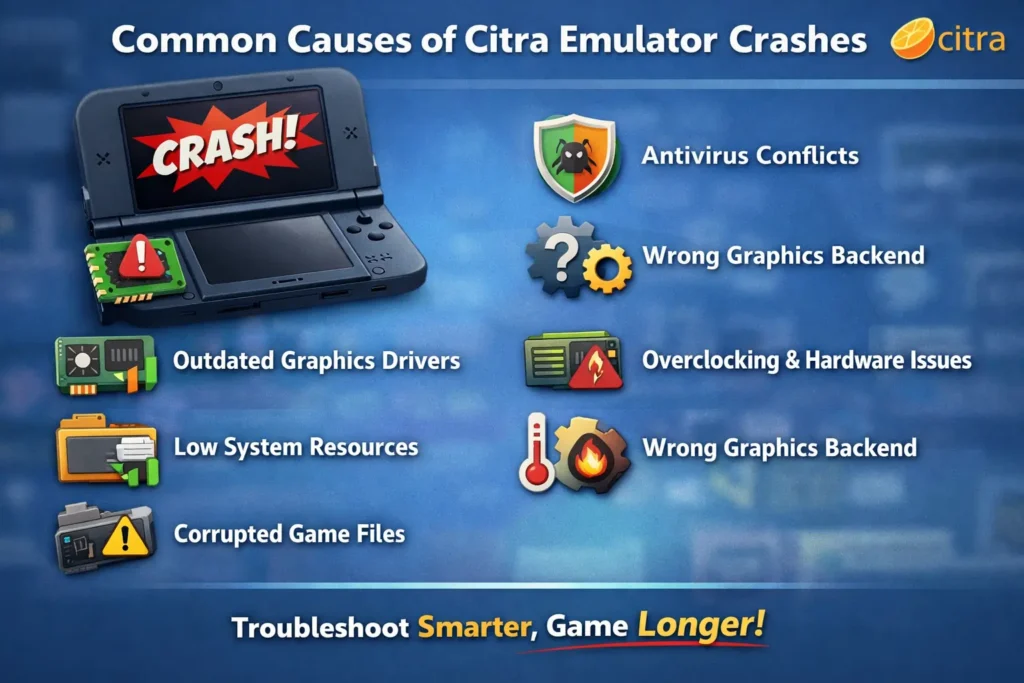
Outdated or Corrupted Graphics Drivers
Graphics drivers are the bridge between your GPU and Citra. Outdated, corrupted, or incompatible drivers are the number one cause of emulator crashes. NVIDIA, AMD, and Intel release frequent driver updates specifically to improve emulation compatibility.
Insufficient System Resources
Citra requires adequate RAM and CPU power to emulate 3DS hardware. Running Citra on systems with less than 4GB RAM or outdated processors often results in crashes, especially during graphically intensive scenes or when multitasking.
Corrupted Game ROMs or Updates
Improperly dumped game files, incomplete downloads, or corrupted game updates can cause Citra to crash when loading or during gameplay. This is particularly common with games that have DLC or multiple updates installed.
Corrupted Citra User Directory
The Citra user directory stores configuration files, save data, and cached shaders. If these files become corrupted often due to improper shutdowns or storage issues Citra may crash on startup or during specific operations.
Antivirus and Firewall Interference
Security software may flag Citra as suspicious and block critical operations, leading to crashes. This is especially common with aggressive antivirus programs that use behavioral analysis or sandbox emulation components.
Incompatible Graphics Backend
Citra supports multiple graphics backends including OpenGL and Vulkan. Using an incompatible or poorly optimized backend for your specific GPU can result in frequent crashes, particularly on integrated graphics or older hardware.
Overclocking and Hardware Instability
Overclocked CPUs or GPUs that aren’t stable can cause random crashes in demanding applications like Citra. Additionally, overheating components or failing hardware (RAM, storage) may manifest as emulator crashes.
12 Proven Fixes for Citra Emulator Crashes
Here are detailed fixes given below:
Fix 1: Update Citra to the Latest Version
Running an outdated version of Citra is one of the easiest problems to fix and often resolves many crash issues immediately.
Why this works: Citra developers constantly release updates that fix known bugs, improve stability, and add compatibility for more games. Older versions may have critical bugs that have already been patched.
How to update:
- Windows/Mac/Linux: Visit the official Citra website and download the latest Nightly or Canary build
- Extract the files and replace your old Citra installation
- Android: Update Citra through the Google Play Store or download the latest APK from the official website
- Alternative: Use Citra Canary for bleeding-edge features and fixes not yet in the stable release
Pro tip: Always download Citra from the official website. Unofficial builds from third-party sites may contain malware or be severely outdated.
Fix 2: Update Your Graphics Drivers
Outdated graphics drivers are the leading cause of Citra crashes. Updating them can resolve 60-70% of crash-related issues.
For NVIDIA users:
- Visit nvidia.com/drivers or open GeForce Experience
- Download the latest Game Ready drivers for your GPU model
- Run the installer and choose ‘Clean Installation’ to remove old driver files
- Restart your computer after installation
For AMD users:
- Go to amd.com/support and download the latest Adrenalin drivers
- Use the AMD Cleanup Utility before installing new drivers
- Install the latest driver package and restart
For Intel integrated graphics:
- Visit intel.com/support or use Intel Driver & Support Assistant
- Download and install the latest graphics drivers
- Note: Intel integrated graphics may struggle with demanding 3DS games
Fix 3: Delete the Citra User Directory
Corrupted configuration files in the Citra user directory often cause crashes on startup or when loading games. Deleting this folder forces Citra to create fresh configuration files.
Warning: This will delete your save files and settings. Back up any important saves before proceeding.
Location of Citra user directory:
- Windows: C:\Users\[YourUsername]\AppData\Roaming\Citra
- Mac: ~/Library/Application Support/Citra
- Linux: ~/.local/share/citra-emu or ~/.config/citra-emu
- Android: /storage/emulated/0/citra-emu
Steps:
- Close Citra completely
- Navigate to the appropriate directory for your operating system
- Rename the ‘Citra’ folder to ‘Citra_backup’ (don’t delete yet)
- Launch Citra it will create a fresh user directory
- Test if the crashes are resolved
- If fixed, you can copy save files from the backup folder back to the new directory
Fix 4: Run Citra as Administrator
Insufficient permissions can prevent Citra from accessing necessary system resources, leading to crashes.
Windows:
- Right-click on citra-qt.exe
- Select ‘Run as administrator’
- To make this permanent: Right-click > Properties > Compatibility > Check ‘Run this program as an administrator’
Mac/Linux:
- Run Citra from terminal with sudo: sudo ./citra-qt
- Alternatively, adjust permissions: chmod +x citra-qt
Fix 5: Add Citra to Antivirus Exceptions
Antivirus software may incorrectly flag Citra as malicious and block its operations, causing unexpected crashes.
For Windows Defender:
- Open Windows Security > Virus & threat protection
- Click ‘Manage settings’ under Virus & threat protection settings
- Scroll down and click ‘Add or remove exclusions’
- Add the entire Citra folder as an exclusion
For third-party antivirus:
- Open your antivirus settings (varies by software)
- Look for ‘Exceptions,’ ‘Exclusions,’ or ‘Whitelist’
- Add the Citra executable and user directory to the exception list
Fix 6: Switch Graphics Backend (OpenGL vs Vulkan)
Different graphics backends perform better on different hardware. Switching between OpenGL and Vulkan can eliminate crashes caused by backend incompatibility.
How to switch:
- Open Citra and go to Emulation > Configure > Graphics
- Under ‘Graphics’ tab, find the ‘API’ dropdown
- If currently using OpenGL, switch to Vulkan (or vice versa)
- Restart Citra and test
Recommendations:
- NVIDIA GPUs: Both OpenGL and Vulkan work well; try Vulkan first
- AMD GPUs: Vulkan often provides better stability and performance
- Intel integrated graphics: OpenGL is usually more stable
- Older systems: Stick with OpenGL if Vulkan causes crashes
Fix 7: Disable Hardware Shader
While hardware shader improves performance, it can cause crashes on some systems, particularly with older or integrated GPUs.
Steps:
- Go to Emulation > Configure > Graphics
- Uncheck ‘Enable Hardware Shader’
- Click OK and restart Citra
Trade-off: Disabling hardware shader will reduce performance but may stabilize the emulator. If this fixes your crashes, consider upgrading your GPU or drivers.
Fix 8: Verify and Redump Your Game ROMs
Corrupted or improperly dumped game files are a common cause of game-specific crashes.
How to verify:
- Right-click the game in Citra’s game list
- Select ‘Open Save Data Location’
- Navigate to the ROM file location
- Check file size against known good dumps (search online databases)
If ROM is corrupted:
- Redump the game from your 3DS using GodMode9 or similar tools
- Ensure you’re using decrypted ROMs (.3ds or .cci format)
- Remove any game updates or DLC and test the base game first
- Reinstall updates one at a time to identify problematic files
Fix 9: Adjust Virtual Memory Settings
Insufficient virtual memory (page file) can cause Citra to crash when it runs out of RAM, especially on systems with 8GB or less.
Windows:
- Right-click ‘This PC’ > Properties
- Click ‘Advanced system settings’
- Under Performance, click ‘Settings’ > Advanced tab
- Click ‘Change’ under Virtual memory
- Uncheck ‘Automatically manage paging file’
- Select ‘Custom size’ and set Initial: 4096 MB, Maximum: 8192 MB
- Click Set > OK, then restart your computer
Fix 10: Disable Overclocking and Check Hardware Stability
Unstable overclocks or failing hardware can manifest as random application crashes.
CPU/GPU overclocking:
- Reset CPU and GPU to stock speeds in BIOS/MSI Afterburner
- Test Citra at default clock speeds
- If crashes stop, your overclock is unstable—increase voltage or reduce frequency
Check for hardware issues:
- Run MemTest86 to check for RAM errors (8+ hours recommended)
- Monitor temperatures with HWMonitor or MSI Afterburner
- Clean dust from GPU/CPU coolers if temperatures exceed 80°C
- Check for bulging capacitors or other physical damage
Fix 11: Install Required System Dependencies
Citra requires certain system libraries and runtimes. Missing dependencies can cause crashes, especially on fresh Windows installations.
Required downloads:
- Visual C++ Redistributables (2015-2022): Download all x64 versions from Microsoft
- DirectX Runtime: Download from Microsoft DirectX End-User Runtime
- .NET Framework 4.8 or later: Should be included in Windows 10/11, but verify in Programs and Features
Linux-specific dependencies:
- Ubuntu/Debian: sudo apt install libqt5widgets5 libqt5multimedia5
- Fedora: sudo dnf install qt5-qtbase qt5-qtmultimedia
- Arch: sudo pacman -S qt5-base qt5-multimedia
Fix 12: Perform a Clean Reinstall of Citra
If all else fails, a complete clean reinstall often resolves persistent crash issues.
Steps for clean reinstall:
- Restore your save files if needed
- Backup your saves from the Citra user directory (see Fix 3 for locations)
- Completely uninstall Citra (delete the executable folder)
- Delete the Citra user directory
- Restart your computer
- Download the latest Citra version from the official website
- Extract to a new location (preferably not Program Files)
- Run Citra and configure settings from scratch
How to Prevent Future Citra Crashes?
Preventing crashes is easier than fixing them later. By following these simple habits, you can keep Citra running smoothly and avoid most problems.
- Keep Citra Updated
Always use the latest version of Citra, as updates fix bugs and improve stability. On Android, enable auto-updates so you don’t miss important fixes. - Keep Graphics Drivers Up to Date
Graphics drivers directly affect emulator performance. Update your GPU drivers once a month and enable update alerts from NVIDIA or AMD. - Use Properly Dumped ROMs
Only use clean, correctly dumped games from your own 3DS cartridges. Bad or incomplete ROMs are a common cause of crashes. - Back Up Citra Files Regularly
Make weekly backups of the Citra user folder, especially your save files. This protects your progress if something goes wrong. - Monitor System Temperature and Health
Overheating can cause crashes. Check CPU and GPU temperatures and clean dust from your system every 3–6 months. - Free Up System Resources Before Playing
Close unnecessary background apps and disable unneeded startup programs. This gives Citra more RAM and CPU power. - Test Settings Changes Slowly
When changing Citra settings, test the game for at least 30 minutes. Avoid changing multiple settings at once. - Save Working Configurations
If a game runs well, save or screenshot the working settings. This makes it easy to restore them later.
Conclusion
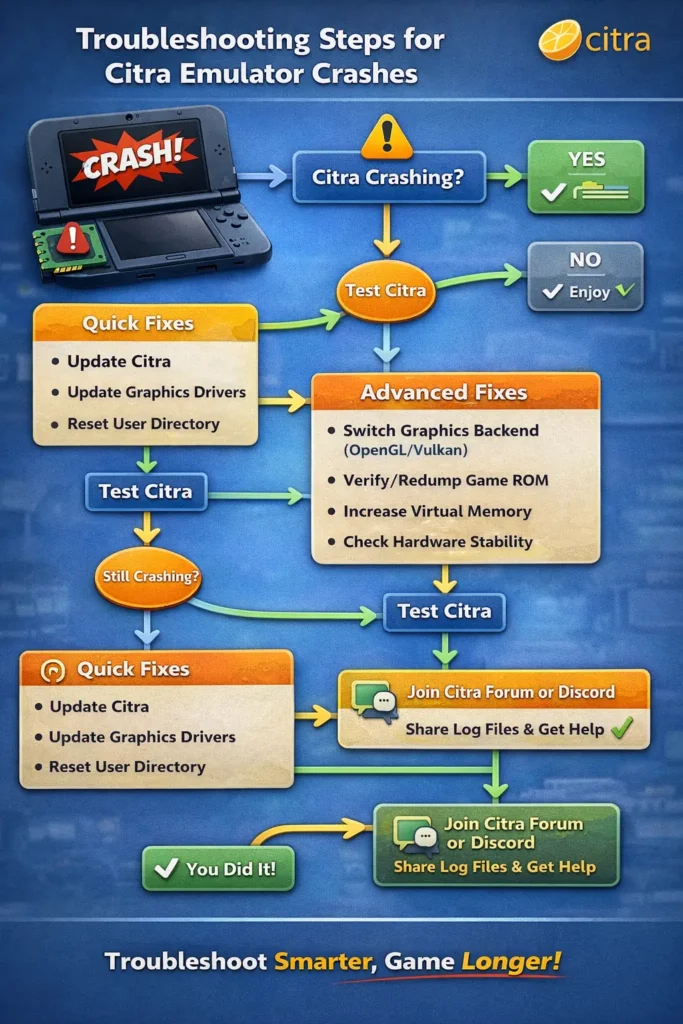
Citra crashes can happen for many reasons, but most issues are easy to fix if you follow the steps in order. Start with the quick fixes like updating Citra, updating graphics drivers, and resetting the user folder these solve most crash problems.
If crashes continue, try advanced fixes such as switching graphics settings, checking game files, adjusting system memory, or fixing hardware issues. Each platform has its own focus: Windows users should check drivers and antivirus, Mac users should review system permissions, and Android users should manage memory usage.
To avoid future crashes, keep Citra and drivers updated, use clean game dumps, watch system temperatures, and free up system resources. If nothing works, visit the official Citra forum or Discord and share your logs and system details community support can help find the exact issue.
Frequently Asked Questions About Citra Crashes
Why does Citra crash only with specific games?
A: Game-specific crashes usually indicate corrupted ROM files, incomplete game dumps, or insufficient hardware for that particular game’s requirements. Some games like Pokemon Sun/Moon and Super Smash Bros are particularly demanding. Redump the game, verify the file integrity, or adjust graphics settings to lower resolution
Does Citra crash more on laptops than desktops?
Yes, laptops are more prone to Citra crashes due to thermal throttling, power management features, and integrated graphics. Laptops with dedicated GPUs (NVIDIA/AMD) perform better. Keep your laptop plugged in and on high-performance mode when using Citra.
Can mods cause Citra to crash?
Absolutely. Improperly installed mods, texture packs, or cheat codes can destabilize Citra. Remove all mods and test the vanilla game first. If crashes stop, reinstall mods one at a time to identify the problematic one.
How much RAM do I need to run Citra without crashes?
Minimum 4GB, but 8GB is recommended for stable performance. Systems with 16GB RAM rarely experience memory-related crashes. If you have 4GB or less, close all background applications and increase virtual memory.
Is Citra Canary more stable than the official release?
Citra Canary includes the latest features and bug fixes before they reach the stable release. For some users, Canary is more stable; for others, it introduces new issues. Try both versions to see which works better for your syst
What games crash most frequently on Citra?
Pokemon Ultra Sun/Moon, Monster Hunter Generations, and some Fire Emblem titles are known to be more crash-prone due to their complexity and hardware demands. These games benefit most from using Vulkan backend, having 16GB+ RAM, and running on dedicated GPUs.
Should I use Citra MMJ on Android instead?
Citra MMJ is an unofficial fork optimized for Android. While it may offer better performance on some devices, it’s not officially supported and may have unique bugs. Try official Citra first, then MMJ if problems persist.
Can overheating cause Citra crashes?
Yes, thermal throttling and overheating protection can cause sudden crashes. Monitor your CPU/GPU temperatures with HWMonitor. If they exceed 85°C, improve cooling by cleaning dust, reapplying thermal paste, or improving case airflow.
: Why does Citra crash after Windows updates?
Windows updates can reset graphics driver settings or introduce compatibility issues. After major Windows updates, reinstall your graphics drivers using DDU (Display Driver Uninstaller) for a clean installation.