Quick Answer:
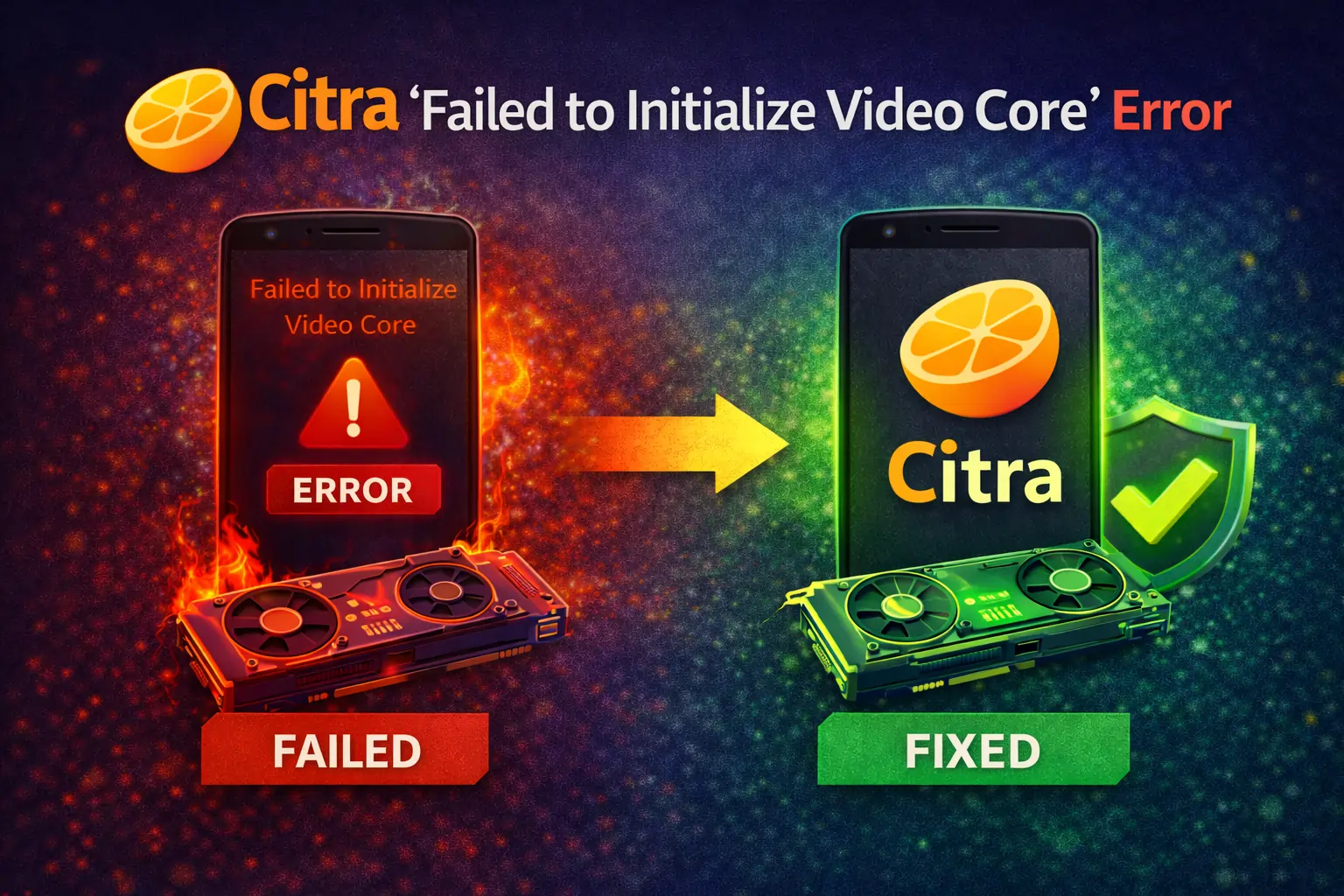
“Failed to Initialize Video Core” means Citra cannot properly communicate with your graphics card. To fix this, update your GPU drivers (NVIDIA, AMD, or Intel), make sure Citra is using your dedicated graphics card on laptops, and install the latest Visual C++ Redistributables. These steps solve most cases.
Citra does not even open. When you double-click the icon, instead of starting normally, you see an error message that says “Failed to Initialize Video Core.” After that, the program closes immediately and you cannot access any settings.
This is one of the most frustrating Citra errors because the emulator does not launch at all. But the good news is that this problem can be fixed in most cases, usually within 5 to 10 minutes.
The main reason for this error is your graphics card. Either your GPU does not support OpenGL 4.3, or your graphics drivers are old or corrupted. In most situations, simply updating your graphics drivers fixes the issue right away.
Quick Fix (Works for Most Users):
Try these simple steps first before reading the full guide:
- Update your graphics drivers:
- If you use NVIDIA, download the latest driver from nvidia.com/drivers.
- If you use AMD, download AMD Adrenalin from amd.com/support.
- If you use Intel, download the latest driver from intel.com/support.
- Restart your computer after installing the drivers. This step is very important.
- Open Citra again and check if it launches properly.
If Citra still does not open after these steps, then follow the detailed fixes in the full guide.
What Does “Failed to Initialize Video Core” Mean?
Here is the simple meaning of this error:
Citra is unable to connect to your computer’s graphics card. The emulator needs a specific graphics feature called OpenGL 4.3 to display 3DS games. If your graphics card does not support this version, or if the drivers are not working correctly, Citra will not start.
Easy Technical Understanding:
In short, this error appears when your GPU cannot provide the features Citra needs to run.
Why This Error Happens (5 Main Reasons)?
- Outdated graphics drivers (about 60% of cases) – Many times Windows installs basic drivers automatically, and these drivers do not fully support OpenGL features required by Citra.
- Graphics card does not support OpenGL 4.3 (about 25% of cases) – Very old graphics cards, especially models released before 2012, do not support OpenGL 4.3, which is required to run Citra.
- Corrupted graphics driver installation (about 10% of cases) – Sometimes driver updates do not install properly, leaving broken or incomplete files that prevent Citra from starting.
- Laptop using integrated GPU instead of dedicated GPU (about 3% of cases) – On many laptops, the system may use the weaker Intel integrated graphics instead of the stronger NVIDIA or AMD card.
- Missing runtime libraries (about 2% of cases) – If required Microsoft Visual C++ Redistributables are not installed, Citra may fail to launch properly.
Check GPU Compatibility FIRST:
Before trying any fixes, first make sure your graphics card is actually capable of running Citra. Some older GPUs simply do not support the required OpenGL version, and in that case no software fix will solve the problem.
Does Your GPU Support OpenGL 4.3?
Citra requires OpenGL 4.3 or higher to launch properly. If your GPU does not support this version, the emulator will show errors and refuse to open.
Method 1: Use GPU-Z (Easiest Method)
- Download GPU-Z from the official TechPowerUp website since it is a free and safe tool.
- Install and open GPU-Z on your computer normally.
- Look for the field labeled “OpenGL Version” inside the program window.
- Make sure the version number shows 4.3 or higher to confirm compatibility.
- If it shows 4.2 or lower, your graphics card does not meet Citra’s minimum requirement.
This is the quickest and most reliable way to check compatibility.
Method 2: Manual Check (Without Extra Software)
- Right-click on your Desktop and open Display Settings from the menu.
- Scroll down and click on Advanced Display Settings to see more details.
- Click on Display Adapter Properties to view your graphics card information.
- Note down your exact GPU model name shown there.
- Search online for your GPU model followed by “OpenGL support.”
- Confirm that your GPU officially supports OpenGL 4.3 or higher.
This method takes a little more time but works if you do not want to install extra tools.
Minimum GPU Requirements for Citra:
Below is a simple compatibility overview of common GPU generations:
| GPU Generation | OpenGL Support | Citra Compatible? |
|---|---|---|
| NVIDIA GTX 400 series or newer (2010+) | 4.6 | Yes, fully supported |
| NVIDIA GTX 200–300 series | 3.3 | No, too old |
| AMD HD 7000 series or newer (2012+) | 4.6 | Yes, supported |
| AMD HD 6000 series or older | 4.2 or lower | No, unsupported |
| Intel HD 4000 or newer (2012+) | 4.3 | Yes, but limited performance |
| Intel HD 3000 or older | 3.1 | No, cannot run Citra |
If your GPU was released before 2012, there is a high chance it does not support OpenGL 4.3.
If Your GPU Does Not Support OpenGL 4.3?
If upgrading is not possible, consider using Citra on a different PC or compatible device.
Fix #1: Update Graphics Drivers
This is the most effective and important solution. In most cases, the “Failed to Initialize Video Core” error happens because your graphics drivers are outdated, broken, or replaced with basic Windows drivers. Updating your graphics drivers properly can fix the problem within minutes.
Why Updating Drivers Fixes the Problem?
- Windows sometimes installs a basic driver called “Microsoft Basic Display Adapter,” which does not fully support advanced OpenGL features.
- These generic drivers do not provide proper OpenGL 4.3 support required by Citra.
- Official drivers from NVIDIA, AMD, or Intel include full OpenGL support and better compatibility.
When you install the correct manufacturer driver, Citra can properly connect to your graphics card.
For NVIDIA Users:
If you are using an NVIDIA graphics card, follow one of the methods below.
Option A: Using GeForce Experience (Recommended Method)
- Download GeForce Experience from the official NVIDIA website.
- Install the program and open it after installation.
- Sign in with your NVIDIA account, which is free to create.
- Click on the “Drivers” tab at the top of the application.
- Click the “Check for updates” button to look for the latest driver.
- If an update is available, click “Download” to start the process.
- Choose the “Custom Installation” option instead of Express install.
- Make sure to select “Perform a clean installation” to remove old driver files.
- Complete the installation process without interrupting it.
- Restart your computer after installation to apply changes.
- Open Citra again and check if the error is fixed.
The clean installation option is very important because it removes corrupted or old files.
Option B: Manual Driver Download
- Go to the official NVIDIA driver page at nvidia.com/drivers.
- Enter your exact GPU model, such as RTX 3060 or GTX 1660.
- Download the latest “Game Ready Driver” shown on the page.
- Run the installer file after the download finishes.
- Select “Custom Installation” instead of the default option.
- Check “Perform a clean installation” before continuing.
- Finish the setup and restart your computer properly.
After restarting, try launching Citra again.
For AMD Users:
If you are using an AMD graphics card, follow these steps carefully.
- Download AMD Software: Adrenalin Edition from amd.com/support.
- Click on the “Download Now” button for the Windows version.
- Run the installer file once it finishes downloading.
- Choose the “Auto-Detect and Install” option so the tool can find your GPU automatically.
- During installation, select the “Factory Reset” option to remove old driver files.
- Wait for the installation process to complete fully.
- Restart your computer after installation is done.
- Open Citra again and test if the error is gone.
Important for AMD users: Always download the full Adrenalin software package because it includes required OpenGL components. Avoid installing the driver-only version.
For Intel Graphics Users:
If your system uses Intel integrated graphics, follow these steps.
- Visit intel.com/support on your browser.
- Download the Intel Driver & Support Assistant tool.
- Install and run the tool to scan your system automatically.
- Let the tool detect your GPU and show recommended updates.
- Install the latest graphics driver suggested by the tool.
- Restart your computer after installation finishes.
- Launch Citra again to see if it opens properly.
Intel Dual Graphics Issue (Laptop Users):
Many laptops have two graphics cards: one Intel integrated GPU and one dedicated NVIDIA or AMD GPU. Windows may automatically run Citra on the weaker Intel GPU instead of the stronger dedicated GPU.
Fix #2: Force Citra to Use Dedicated GPU
This fix is mainly for laptop users who have dual graphics. Many laptops come with two graphics cards: one is Intel integrated graphics for saving battery, and the other is a stronger NVIDIA or AMD graphics card for performance.
Windows often runs Citra on the weaker Intel GPU by default. Because Intel HD 4000–5500 graphics are not very powerful, Citra may fail to start or show the “Failed to Initialize Video Core” error. To fix this, you need to manually tell your laptop to use the dedicated GPU for Citra.
Why This Fix Is Important?
Most laptops have:
- Intel integrated GPU, which is used for simple tasks and battery saving.
- NVIDIA or AMD dedicated GPU, which is stronger and made for gaming and heavy graphics work.
If Citra runs on the Intel GPU instead of the dedicated GPU, it may not get enough graphics support to launch properly.
For NVIDIA Laptops:
If your laptop has an NVIDIA graphics card, use one of the methods below.
Method 1: Using NVIDIA Control Panel
- Right-click anywhere on your Desktop and select NVIDIA Control Panel from the menu.
- Inside the panel, go to Manage 3D Settings from the left side.
- Click on the Program Settings tab at the top.
- Click the Add button to add a specific program.
- Browse to the location where Citra is installed, usually something like
C:\YourFolder\citra-qt.exe. - Select citra-qt.exe and add it to the program list.
- Under “Select the preferred graphics processor,” choose High-performance NVIDIA processor.
- Click the Apply button to save your changes.
- Close the NVIDIA Control Panel completely.
- Launch Citra again and check if the error is fixed.
This method ensures Citra always uses the stronger NVIDIA GPU.
Method 2: Using Windows Graphics Settings
If NVIDIA Control Panel does not work, you can use Windows settings instead.
- Open Settings in Windows and go to System.
- Click on Display from the left menu.
- Scroll down and select Graphics Settings.
- Click the Browse button to add an application manually.
- Find and select citra-qt.exe from your installation folder.
- After adding it, click on Options next to Citra.
- Choose High Performance, which usually means the dedicated GPU.
- Click Save to confirm your selection.
- Restart Citra and test if it launches correctly.
This method forces Windows to use the stronger GPU for Citra.
For AMD Laptops:
If your laptop has an AMD dedicated GPU, follow these steps.
- Right-click on your Desktop and open AMD Radeon Settings.
- Go to the System section inside the software.
- Click on Switchable Graphics to see application settings.
- Find Citra in the list of installed programs.
- Change its mode from Power Saving to High Performance.
- Click Apply to save the changes.
- Close the Radeon software and launch Citra again.
Setting Citra to High Performance ensures it runs on the dedicated AMD graphics card instead of the weaker integrated GPU. After applying these changes, Citra should launch using your stronger GPU, which solves the problem in many laptop cases.
Fix #3: Clean Reinstall Graphics Drivers Using DDU
Use this method if updating your graphics drivers normally (Fix #1) did not solve the problem. Sometimes old or broken driver files remain in your system even after updating, and these leftover files can still cause errors.
What Is DDU?
Display Driver Uninstaller (DDU) is a free tool that completely removes all graphics driver files from your computer. It deletes hidden and corrupted files that normal uninstallation does not remove. After using DDU, you can install fresh drivers without conflicts.
How to Use DDU (Step-by-Step)?
- Download Display Driver Uninstaller (DDU) from the official Guru3D website.
- Restart your computer into Safe Mode before running DDU.
How to Enter Safe Mode:
- Open Settings in Windows and go to Update & Security.
- Click on Recovery from the left menu.
- Under “Advanced Startup,” click Restart Now.
- Choose Troubleshoot, then select Advanced Options.
- Click Startup Settings, then click Restart again.
- After restart, press F4 to enter Safe Mode.
- Once in Safe Mode, open the DDU program.
- Select your GPU brand from the dropdown list (NVIDIA, AMD, or Intel).
- Click on “Clean and Restart.”
- Your computer will automatically restart in normal mode.
- As soon as Windows loads, download and install the latest drivers from your GPU manufacturer’s official website.
- After installing drivers, restart your PC again and test Citra.
Important Warning:
DDU removes all graphics drivers from your system. After restarting, your screen may look blurry or have low resolution because no proper driver is installed yet. This is completely normal.
Once you install the latest official driver, your display will return to normal. Using DDU is a powerful solution when regular driver updates do not fix the error.
Fix #4: Try a Different Citra Build
Sometimes the problem is not your drivers or GPU, but the version of Citra you are using. Different Citra builds use slightly different graphics code, and some builds work better with certain GPUs. If you are getting the “Failed to Initialize Video Core” error, testing another Citra build can help.
Canary vs Nightly – What’s the Difference?
If you are facing video core errors, it is recommended to try Citra Canary first because it includes the latest fixes.
How to Test a Different Build?
- Download the latest version of Citra Canary from the official source.
- Extract it into a completely separate folder so it does not replace your Nightly installation.
- Open the Citra Canary application from the new folder.
- If Citra opens normally without showing the error, then the problem was related to your previous build.
If Canary works but Nightly does not, you can continue using Canary as your main version.
Fix #5: Install Missing Runtime Libraries
Sometimes Citra does not open because important Microsoft system files are missing. These files are called runtime libraries, and many programs need them to work properly. If these libraries are not installed or are outdated, Citra may show errors or fail to launch.
Install Visual C++ Redistributables:
Citra needs Visual C++ files to run correctly.
- Go to Microsoft’s official download website.
- Download “Visual C++ Redistributable for Visual Studio 2015–2022.”
- Make sure you download both x64 and x86 versions.
- Install the x64 version first on your computer.
- Then install the x86 version after that.
- Restart your computer once both installations are complete.
- Open Citra again and check if it works.
Installing both versions ensures that all required components are available.
Install DirectX End-User Runtime:
Citra also needs certain DirectX files to work properly.
- Download DirectX End-User Runtime from Microsoft’s official website.
- Run the web installer file after downloading it.
- Follow the instructions on the screen while it installs missing components.
- Restart your computer after installation finishes.
- Launch Citra and test it again.
Even though Windows 10 and Windows 11 already include DirectX 12, Citra still needs some older DirectX 9 components for certain graphics functions. Installing these runtime libraries often fixes launch errors and video core problems.
Platform-Specific Fixes:
Sometimes the error depends on the device or operating system you are using. Below are simple fixes for Mac, Android, and Linux users.
For Mac Users:
Fix 1: Update macOS
Make sure your Mac is running a supported version of macOS.
- The minimum required version is macOS 10.13 High Sierra.
- Click the Apple menu at the top-left corner.
- Go to System Settings or System Preferences.
- Click Software Update and install any available updates.
Updating macOS can fix compatibility and graphics issues.
Fix 2: For M1 / M2 Macs (Apple Silicon)
If you are using an Apple Silicon Mac:
- Right-click on Citra.app.
- Click Get Info from the menu.
- Check the box that says “Open using Rosetta.”
- Close the window.
- Launch Citra again.
This forces the app to run in compatibility mode, which can solve launch problems.
Fix 3: Install XQuartz
Some Citra features require X11 support on macOS.
- Download XQuartz from the official website.
- Install it properly on your Mac.
- Restart your Mac after installation.
- Open Citra and test again.
Installing XQuartz can solve certain graphics or startup issues.
For Android Users:
On Android, this error usually happens because of processor or GPU compatibility issues.
Check Your Processor Type:
- Open Settings on your phone.
- Go to About Phone.
- Look for Processor or Chipset information.
- If your phone uses Snapdragon (Qualcomm), Citra usually works.
- If your phone uses MediaTek, Citra may not work properly due to weak OpenGL ES support.
Fix for Snapdragon Users:
If you have a Snapdragon processor:
- Install the latest version of Citra MMJ.
- Go to graphics settings and change the renderer to OpenGL ES 3.2.
- Restart the app and test your game again.
Updating to the latest build improves compatibility.
MediaTek Users:
If your phone uses a MediaTek processor, Citra may not run correctly. In this case, you may need to use the PC version instead.
For Linux Users:
Linux users may need to update drivers and install required libraries.
Update Mesa Drivers (For AMD / Intel):
Open Terminal and run:
sudo apt update
sudo apt upgrade mesa-vulkan-drivers
This updates your graphics drivers for AMD and Intel GPUs.
Install Official NVIDIA Drivers:
If you use an NVIDIA graphics card, install the official driver instead of the open-source one.
sudo ubuntu-drivers autoinstall
sudo reboot
This command installs the recommended NVIDIA driver and restarts your system.
Install Required Libraries:
Citra also needs certain Qt libraries on Linux.
sudo apt install libqt5widgets5 libqt5multimedia5 libqt5opengl5
After installing, restart your system and test Citra again. Applying the correct fix based on your platform can help solve the error faster and more effectively.
When Nothing Works: Hardware Limitations
If you have tried all the fixes and still see the video core error, the problem is most likely your graphics card. In this case, your GPU may not support the minimum requirements needed to run Citra properly.
If your hardware does not support OpenGL 4.3, no software fix will solve the issue.
Option 1: Upgrade Your Graphics Card
If you are using a desktop PC, upgrading your GPU is the best long-term solution.
- Budget option: NVIDIA GeForce GTX 1650 Super – affordable and good enough for Citra.
- Mid-range option: AMD Radeon RX 6600 – strong performance and smooth gameplay.
- High-end option: NVIDIA GeForce RTX 4060 – runs Citra easily at maximum settings.
Any of these graphics cards fully support modern OpenGL features.
Option 2: Use Citra on Another Device
If upgrading your PC is not possible, you can use Citra on a different device.
- An Android phone with Snapdragon 660 or higher.
- A gaming laptop with a dedicated graphics card.
- A desktop PC with a modern GPU.
Using a stronger device may be easier than upgrading.
Option 3: Use Cloud Gaming
You can also use a cloud gaming service that provides access to a powerful remote PC.
- Shadow
- Other similar cloud gaming platforms
These services allow you to run games on a remote system and stream them to your device.
Important for Laptop Users:
Most laptops have soldered graphics chips that cannot be upgraded. If your laptop GPU is too old, you usually cannot replace it. In that case, your best options are using another device or trying a cloud gaming service.
Conclusion:
“Failed to Initialize Video Core” is one of the most common launch errors in Citra, but the good news is that it can be fixed in most cases. The problem is usually caused by outdated or broken graphics drivers, the laptop using the wrong GPU, or missing system libraries. For most users, simply updating the GPU drivers with a clean installation solves the issue within a few minutes.
If that does not work, forcing Citra to use the dedicated GPU, reinstalling drivers using DDU, trying the Citra Canary build, or installing Visual C++ and DirectX runtimes can fix the error. However, if none of these solutions work, your graphics card may not support OpenGL 4.3, which is required to run Citra. In that case, upgrading your GPU or using another compatible device is the only solution.
Frequently Asked Questions
What does “Failed to Initialize Video Core” mean in simple words?
It means Citra cannot properly connect to your graphics card. This usually happens if your GPU is too old or if your graphics drivers are outdated. The first thing you should do is update your GPU drivers.
Can I run Citra without a separate graphics card?
Yes, but only if your computer has modern integrated graphics like Intel HD 4000 or newer (from 2012 or later). Older integrated graphics are too weak and do not support the required OpenGL version.
I updated my drivers but the error is still there. What should I do now?
If updating drivers did not help, try forcing Citra to use your dedicated GPU if you are on a laptop, reinstall your drivers using DDU for a clean setup, try the latest Citra Canary version, and make sure Visual C++ redistributables are installed.
Does this error mean my graphics card is damaged?
No, this error is usually caused by software or driver issues, not hardware damage. If other games and programs work normally, your graphics card is most likely fine.
Why was Citra working before but now shows this error?
This often happens after a Windows update because Windows may replace your original graphics drivers with basic generic ones. Reinstalling the latest drivers from your GPU manufacturer’s official website usually fixes the issue.
Can I use Citra with Intel integrated graphics?
Yes, but only if you have Intel HD 4000 or newer graphics. Older Intel GPUs do not support OpenGL 4.3. Even with supported Intel graphics, performance will be lower compared to a dedicated NVIDIA or AMD GPU.
Will upgrading my RAM fix this error?
No, this problem is related to your graphics card, not your system memory. Increasing RAM will not fix the video core error. You need proper GPU support and updated drivers.