Quick Answer:
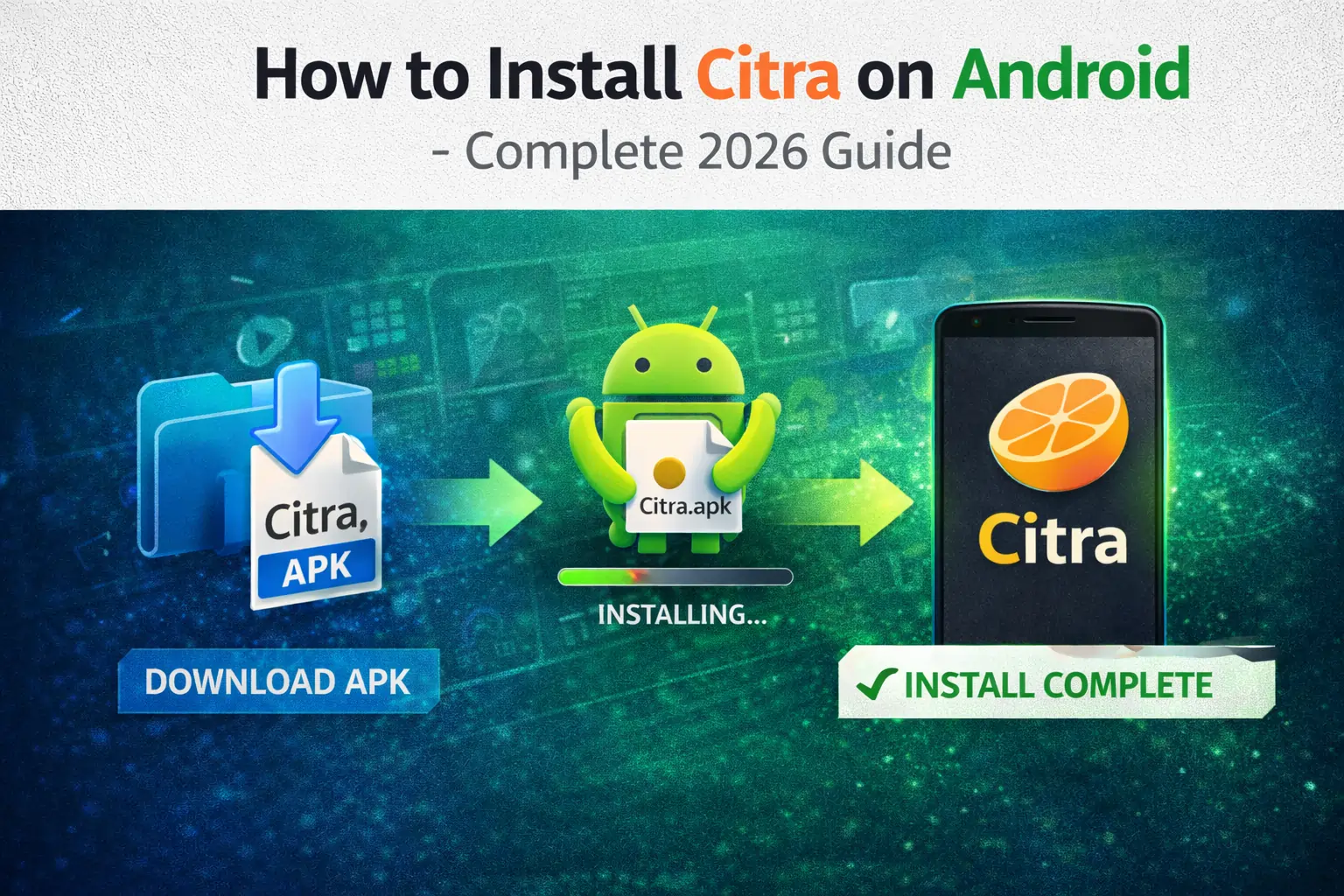
To install Citra MMJ on Android, first download the latest APK directly from our website (you can safely get it from here). Then enable “Install from Unknown Sources” in your phone settings. Open the APK file and tap Install. Allow storage permissions when asked, then add your 3DS ROM files to your phone storage. The full process takes about 5 minutes and does not require root access.
Do you want to play Nintendo 3DS games on your Android phone? With Citra MMJ, you can do that easily, and the installation usually takes less than 5 minutes. You do not need to root your phone, and it works on most Android devices released from 2018 and later.
In this guide, I will explain step by step how to install Citra MMJ. You will learn how to download the APK file, allow required permissions, add your game files, and adjust basic settings for better performance.
Quick Facts:
Quick Installation (5 Minutes):
For users who want fast steps:
- Download the latest Citra MMJ APK from our website.
- Go to Settings → Security on your phone and enable “Install from Unknown Sources.”
- Open the downloaded APK file and tap Install, then allow storage permission when asked.
- Copy your 3DS ROM files into the /Citra/ROMs/ folder in your phone storage.
- Open Citra, select your game, and start playing.
If you want detailed step-by-step instructions with explanations, continue reading below.
What is Citra MMJ?
Citra MMJ is a modified version of the original Citra emulator that was improved for better performance on Android devices.
In simple words, Citra MMJ is a faster and more Android-friendly version of the official emulator.
Citra Official vs Citra MMJ:
Before installing, it is important to understand the difference between the two Android versions of Citra. Both versions can run 3DS games, but there are some differences in performance and features.
| Feature | Citra Official | Citra MMJ |
|---|---|---|
| Performance | Good and stable | Better performance (around 20–30% faster in many games) |
| Compatibility | Standard game support | Same game compatibility |
| User Interface | Official default design | Slightly customized interface |
| Updates | Updated less frequently | Updated more regularly |
| Recommended? | ⭐⭐⭐ | ⭐⭐⭐⭐⭐ |
The official version is stable and simple, but it may not be as optimized for performance. Citra MMJ is usually faster and better optimized for Android devices, especially for Snapdragon processors.
For most users, Citra MMJ is the better choice because it offers smoother gameplay and more performance improvements while keeping the same compatibility.
Before Installing: Requirements Check
Before installing Citra MMJ, make sure your phone meets the minimum requirements. If your device is too weak, games may lag or not open properly.
Minimum Phone Specifications:
| Component | Minimum | Recommended |
|---|---|---|
| Android Version | Android 8.0 Oreo | Android 10 or newer |
| Processor | Snapdragon 660 | Snapdragon 855 or higher |
| RAM | 4GB | 6GB or more |
| Storage Space | At least 2GB free | 5GB or more free |
| GPU | Adreno 512 or higher | Adreno 630 or higher |
If your phone meets only the minimum specs, games may run but performance could be limited. For smooth gameplay, recommended specs are better.
How to Check Your Phone Specifications?
If you are not sure about your phone’s hardware, you can easily check it.
- Download the DevCheck app from the Google Play Store (it is free).
- Open the app after installation.
- Go to the Hardware tab inside the app.
- Check and note your Processor name, RAM amount, and GPU model.
Once you confirm your phone meets the requirements, you can proceed with installing Citra safely.
Phone Compatibility Guide:
Below is a simple overview of how Citra performs on different phone models and processors. Performance mainly depends on the processor and GPU inside the device.
| Phone Model | Processor | Citra Performance |
|---|---|---|
| Samsung S21+ | Snapdragon 888 | Excellent performance with smooth gameplay |
| OnePlus 9 | Snapdragon 888 | Excellent performance in most games |
| Pixel 6 | Google Tensor | Very good performance with minor issues in heavy games |
| Xiaomi Redmi Note 11 | Snapdragon 695 | Good performance, but may need lower settings |
| Poco X3 Pro | Snapdragon 860 | Very good performance for most 3DS games |
| MediaTek Helio phones | MediaTek | Poor performance or may not run properly |
MediaTek Warning:
Most MediaTek processors have weak OpenGL ES support, which causes crashes or black screens. Only newer Dimensity 900+ series processors work reasonably well, but Snapdragon processors are generally much more stable for Citra.
How to Install Citra MMJ on Android (Step-by-Step Guide)?
In this section, you will learn how to properly install Citra MMJ on your Android phone. The full process is simple and usually takes less than 10 minutes. Just follow each step carefully, and you will be able to play Nintendo 3DS games on your device without root access.
Step 1: Download Citra MMJ
First, you need to download the latest APK file safely.
Safe Download Sources:
- You can download it from the official GitHub page.
- You can also download the latest version directly from our website.
Avoid random APK websites or torrent sites because they may contain harmful or modified files.
Download Process:
- Open the Chrome browser on your Android phone.
- Visit the official GitHub page or download it directly from our website.
- If using GitHub, tap on the Releases section on the page.
- Look for the newest version at the top of the list.
- Tap on the file named like Citra_MMJ_[version].apk.
- The download will begin automatically on your phone.
- The file will be saved in your Downloads folder.
If you want a faster method, you can download the APK directly from our website.
Step 2: Enable “Install from Unknown Sources”
Android does not allow APK installations by default, so you must allow it manually.
For Android 11, 12, 13:
- Tap on the downloaded APK file from your notification bar or Downloads folder.
- You will see a message saying your phone cannot install unknown apps.
- Tap the Settings button shown on that message.
- Turn on the option that says Allow from this source.
- Go back and tap the APK file again to continue installation.
For Android 8, 9, 10:
- Open your phone’s Settings.
- Go to Security & Privacy.
- Find the option called Install Unknown Apps or Unknown Sources.
- Select your browser, such as Chrome.
- Turn on the option to allow installation from that source.
For Samsung Phones:
- Open Settings.
- Go to Biometrics & Security.
- Tap on Install Unknown Apps.
- Choose your browser from the list.
- Enable the option to allow installation from that source.
Step 3: Install the APK
Now you can install the downloaded file.
Installation Steps:
- Swipe down the notification bar and tap the downloaded APK file.
- If you missed the notification, open the Files app and go to the Downloads folder.
- Tap on the file named Citra_MMJ_[version].apk.
- Android will scan the file for a few seconds.
- Tap the Install button when it appears.
- Wait about 10–20 seconds for the installation to finish.
- Tap Open once the installation is complete.
Troubleshooting Installation Errors:
- If you see “App not installed”, delete any older version of Citra first and try again.
- If you see “Package appears corrupt”, delete the file and download it again using a stable WiFi connection.
- Make sure you have at least 500MB of free storage space before installing.
Step 4: Grant Storage Permissions
Citra needs permission to access your game files stored on your phone.
On First Launch:
- Open Citra for the first time after installation.
- A pop-up will ask for storage permission.
- Tap Allow to give access.
- On Android 11 and newer versions, you may be asked to allow access to specific folders.
If You Accidentally Denied Permission:
- Long-press the Citra app icon on your home screen.
- Tap App Info from the menu.
- Open the Permissions section.
- Tap on Storage or Files and Media.
- Change the permission to Allow.
Step 5: Adjust Basic Settings
Before playing games, adjust some important settings for better performance.
- Open Citra and tap the menu icon (≡).
- Go to the Settings section.
Recommended First-Time Settings:
Graphics Settings:
- Set Resolution to 2x Native to balance quality and performance.
- Choose OpenGL ES as the API for better compatibility.
- Keep Hardware Shader turned ON for smoother graphics.
- Turn ON Async Shader Compilation to reduce stuttering.
CPU Settings:
- Make sure CPU JIT is turned ON because it improves performance.
- Keep CPU Clock Override turned OFF to avoid instability.
Audio Settings:
- Enable Audio Stretching to reduce sound crackling during gameplay.
After changing these settings, save them and return to the main screen.
Step 6: Add Your 3DS Games
Now you need to place your game files in the correct folder.
Create ROM Folder:
- Open the Files app on your phone (Samsung users can open “My Files”).
- Tap on Internal Storage.
- Create a new folder named Citra.
- Inside that folder, create another folder named ROMs.
- Place your .3ds or .cia game files inside the ROMs folder.
Recommended folder path:
Internal Storage → Citra → ROMs
Transfer ROMs from PC:
Method 1: Using USB Cable
- Connect your phone to your computer using a USB cable.
- Select Transfer Files on your phone screen.
- Open your phone storage on your PC.
- Go to the Citra → ROMs folder.
- Copy your game files from your computer into that folder.
Method 2: Using Cloud Storage
- Upload your ROM files to Google Drive from your computer.
- Download the files on your phone using the Drive app.
- Move the downloaded files from the Downloads folder to Citra → ROMs.
Supported File Formats:
- .3ds files work properly if they are decrypted.
- .cia files are supported and often recommended.
- .cxi files are supported but not very common.
- Zip or RAR files must be extracted before use.
Step 7: Load and Play Your Game
Now you are ready to start playing.
Loading Your First Game:
- Open Citra on your phone.
- Tap the menu icon (≡).
- Select Load File from the menu.
- Navigate to the Citra → ROMs folder.
- Tap on your game file.
- Wait for the game to load, which may take 30–60 seconds the first time.
- Once loaded, you can start playing.
After the first launch, games usually load faster because shaders are saved. Following these steps carefully will help you install and set up Citra MMJ correctly on your Android device without any issues.
After Installation: Add Games & Set Up Controls
Once you have installed Citra MMJ and added your ROM files, you can organize your games and adjust the on-screen controls for a better experience. These extra steps make it easier to access games and play comfortably on your phone.
Alternative Method: Add Games Directory:
Instead of loading games one by one, you can add your ROM folder as a games directory. This will show all your games on the main screen automatically.
Steps to Add Games Directory:
- Open Citra on your phone.
- Tap the “+” button located at the bottom-right corner of the screen.
- Select “Add Games Directory” from the options.
- Navigate to the Citra → ROMs folder in your internal storage.
- Select that folder to confirm.
After adding the folder, all your games will appear as tiles on the home screen, making it easier to launch them anytime.
Understanding Touch Controls:
Citra shows virtual buttons on your screen that work like a real Nintendo 3DS controller.
Default Button Layout:
- D-Pad is on the left side of the screen and is used for movement.
- A, B, X, Y buttons are on the right side for actions.
- L and R buttons are located at the top corners of the screen.
- Start and Select buttons are placed near the bottom center.
- The touchscreen area works like the 3DS bottom screen and can be tapped directly.
These virtual controls allow you to play without any physical controller.
Customize On-Screen Controls:
If the default button layout feels uncomfortable, you can move and adjust the controls.
Steps to Customize Controls:
- While playing a game, tap the menu icon on the screen.
- Go to Settings, then open the Input section.
- Tap Configure and select On-Screen Controls.
- Drag the buttons to reposition them anywhere on the screen.
You can adjust the layout to match your hand position for more comfortable gameplay.
Customizing the game directory and touch controls makes playing on Android smoother and more user-friendly.
Optimize Citra MMJ for Best Performance:
To get smooth gameplay in Citra MMJ, you should adjust the settings based on your phone’s processor. Different phones have different power levels, so using the right settings helps avoid lag and crashes.
Settings Based on Phone Performance Level:
High-End Phones (Snapdragon 865 or Higher):
If your phone has a powerful processor like Snapdragon 865, 870, 888, or newer:
- Set Resolution to 3x or 4x Native for better graphics quality.
- Keep Hardware Shader turned ON for smoother performance.
- Enable Async Shader to reduce stuttering during gameplay.
High-end phones can handle higher resolution and advanced settings easily.
Mid-Range Phones (Snapdragon 730–855):
If your phone has a mid-range processor:
- Set Resolution to 2x Native for balanced performance and quality.
- Keep Hardware Shader turned ON for stable rendering.
- Enable Async Shader to improve smoothness.
These settings provide good performance without overloading your device.
Low-End Phones (Snapdragon 660–710):
If your phone is older or less powerful:
- Set Resolution to 1x Native to reduce lag.
- Turn Hardware Shader OFF if you experience crashes or black screens.
- Close all background apps before playing to free up RAM and CPU power.
Lower settings help improve stability on weaker devices.
Choosing the correct settings for your phone will give you smoother gameplay and fewer performance problems.
Game-Specific Tips:
Different 3DS games need different settings for smooth performance in Citra MMJ. Here are simple tips for some popular games.
- Pokemon X / Y: These games usually run smoothly at 60 FPS on good phones, so you can use 3x or even 4x resolution for better graphics quality.
- Pokemon Sun / Moon: These games are more demanding and may run at 30–40 FPS, so it is better to use 2x resolution and turn on Accurate Multiplication for better graphics stability.
- Mario Kart 7: This game needs strong CPU performance, so if you notice frame drops, lower the resolution to improve smoothness.
Adjusting settings based on the game helps you get better performance and fewer lag issues.
Controller Support (Optional):
You can also play Citra MMJ using a Bluetooth controller instead of on-screen touch controls. This gives a more comfortable and console-like experience, especially for action and racing games.
How to Connect a Bluetooth Controller?
- Open Settings on your phone and go to Connections → Bluetooth.
- Turn Bluetooth ON if it is not already enabled.
- Put your controller into pairing mode:
- Xbox Controller: Press and hold the pairing button until the light starts blinking.
- DualShock 4: Press and hold the Share + PS buttons together until the light flashes.
- On your phone, tap the controller name when it appears in the Bluetooth list.
- Wait until the status shows Connected.
Once connected, your controller is ready to use.
Supported Controllers:
Citra works with most popular Bluetooth controllers, including:
- Xbox Wireless Controller
- DualShock 4 (PS4 controller)
- DualSense
- Nintendo Switch Pro Controller
- Most generic Bluetooth gamepads
How to Configure Controller in Citra?
- Open Citra and go to the menu.
- Tap Settings, then open the Input section.
- Choose Configure, then select Physical Controller.
- Map the buttons according to your preference, although most controllers are detected and mapped automatically.
After setup, you can enjoy smoother and more comfortable gameplay using your controller.
Common Installation Problems:
Sometimes you may face small problems while installing or using Citra MMJ. Below are the most common issues and simple solutions.
App Not Installed
If you see the “App not installed” error, first uninstall any old version of Citra from your phone. Then download the APK file again from a trusted source because the previous file may be corrupted. Also make sure your phone has at least 500MB of free storage before installing.
Citra Crashes on Launch
If Citra opens and immediately closes, your phone may not be compatible, especially if it uses a MediaTek processor. Make sure your device is running Android 8.0 or newer. If your phone meets the requirements, uninstall Citra completely and reinstall it again.
ROM Files Not Showing
If your games are not appearing in Citra, check that your ROM files are placed in the correct folder (Internal Storage → Citra → ROMs). Make sure the file format is supported, such as .3ds or .cia. Also confirm that storage permission is allowed in the app settings.
Black Screen or Graphics Issues
If your game shows a black screen or graphical glitches, open Citra settings and switch the graphics API to OpenGL ES. If the issue continues, disable Hardware Shader and lower the resolution to 1x or 2x Native for better stability.
Conclusion:
Installing Citra MMJ on Android is quick and simple, and the whole process usually takes less than five minutes. You just need to download the latest APK file, enable installation from unknown sources, install the app, and allow storage permissions. After that, place your ROM files inside the Citra/ROMs folder, adjust basic graphics settings, and load your game to start playing. For the best and smoothest experience, it is recommended to use a phone with a Snapdragon 855 or higher processor and at least 6GB of RAM.
Frequently Asked Questions
Is Citra for Android free?
Yes, Citra MMJ is completely free and open-source. There are no ads and no in-app purchases.
Do I need to root my phone to use Citra?
No, Citra works perfectly on normal Android phones. You do not need to root your device.
Is Citra safe? Is it a virus?
Citra itself is safe because it is open-source software. Just make sure you download it from trusted sources like GitHub or our website. Avoid random APK sites, as they may contain unsafe files.
Why can’t I find Citra on the Google Play Store?
Google does not allow certain emulators on the Play Store. Installing the APK file manually is normal and safe when downloaded from a trusted source.
What Android version is required?
You need at least Android 8.0 Oreo to run Citra. For better performance and stability, Android 10 or newer is recommended.
Will Citra work on my Samsung, Xiaomi, or OnePlus phone?
Yes, it can work on any brand as long as your phone meets the minimum requirements, such as a Snapdragon 660 or higher processor, 4GB RAM, and Android 8 or above.
Do 3DS games run smoothly on Android?
Most games run at 30 to 60 FPS on modern phones released in 2020 or later. However, more demanding games like Pokemon Sun and Moon may experience some slowdowns on weaker devices.