
Download Citra Emulator for Android
|
Property |
Details |
|---|---|
|
File Name |
Citra Emulator |
|
File Size |
30 MB |
|
Version |
bed6a4f12 |
|
Developer (CN) |
Android |
|
Release Date |
2025-12-03 |
|
File Type |
APK |
|
Supported OS |
Android |
|
Download |
System Requirements for Citra on Android
Citra’s performance on 3ds emulator Android depends heavily on your phone’s hardware and software version. Checking the minimum and recommended requirements below helps avoid crashes, lag, or installation issues.
How to Download and Install Citra on Android?
Follow the steps below carefully to install Citra Emulator on Android without errors. The process is simple, but permissions must be enabled correctly.
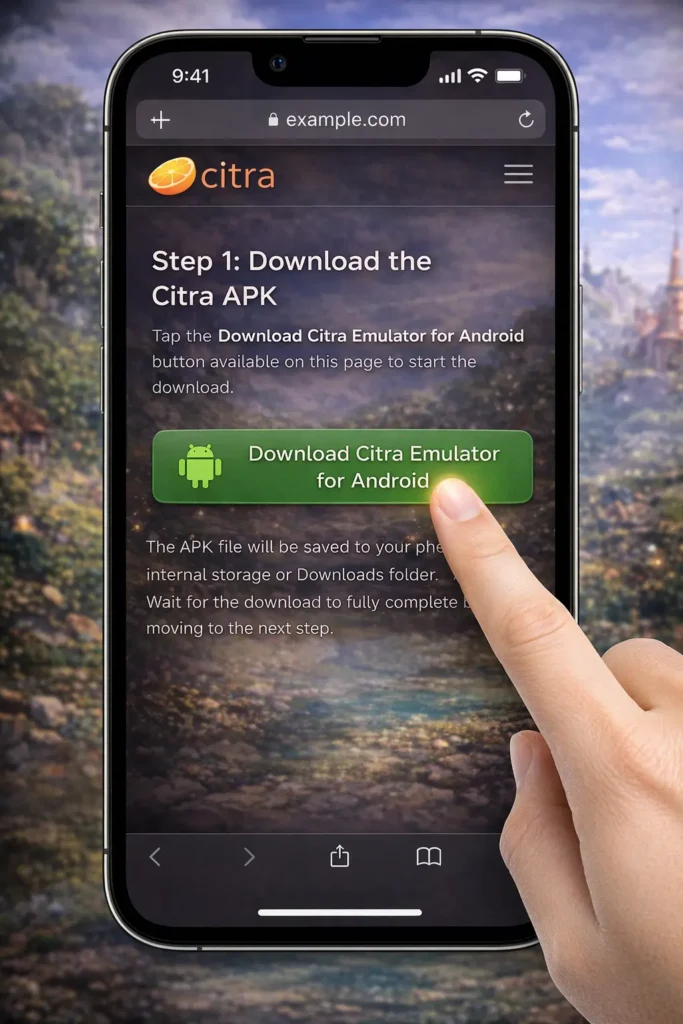
Step 1: Download the Citra APK
Tap the Download Citra Emulator for Android button available on this page to start the download. The APK file will be saved to your phone’s internal storage or Downloads folder. Wait for the download to fully complete before moving to the next step.
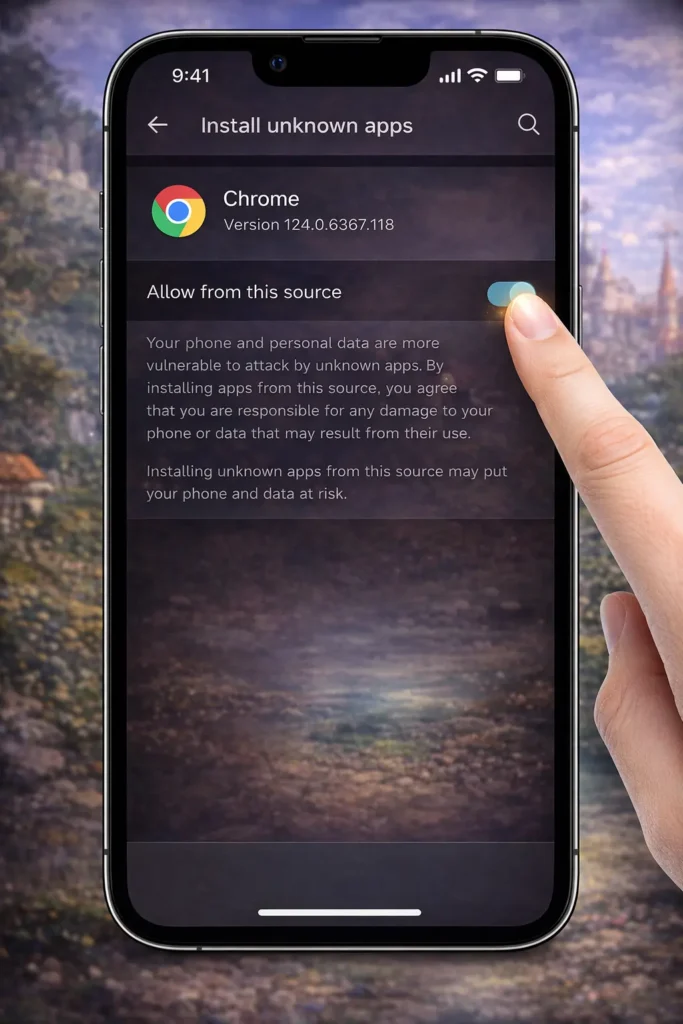
Step 2: Enable Installation from Unknown Sources
Open Settings → Security or Privacy → Install Unknown Apps on your device. Allow permission for the browser or file manager you used to download the APK. This step is required because the app is installed outside the Play Store.
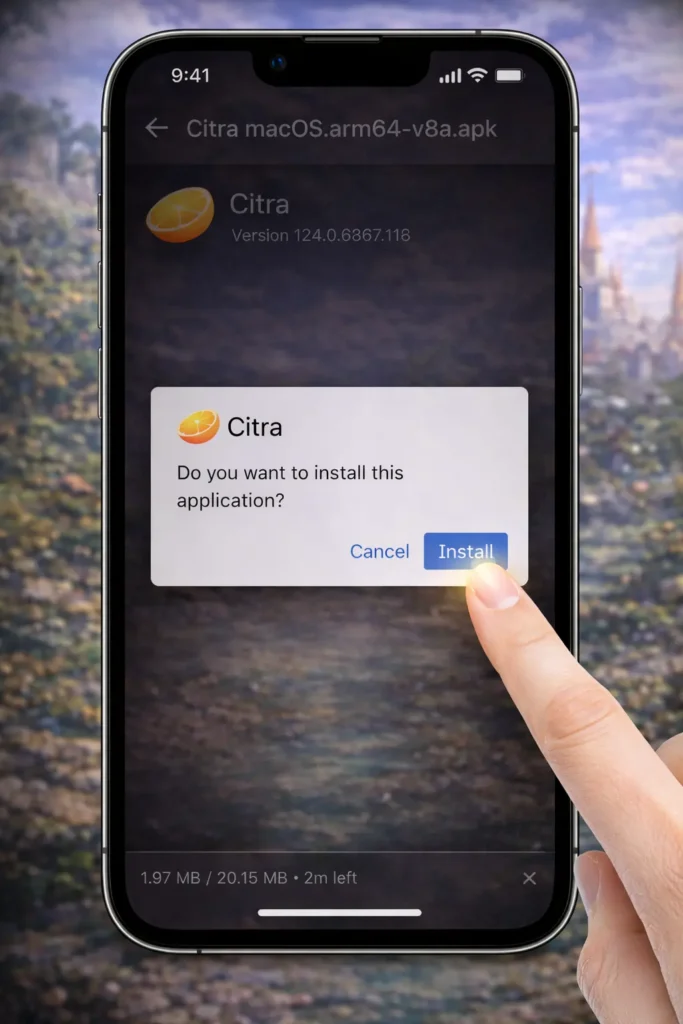
Step 3: Install the APK File
Locate the downloaded APK file and tap on it to begin installation. Confirm the installation prompt and wait until the process finishes.Do not close the installer while the app is installing.
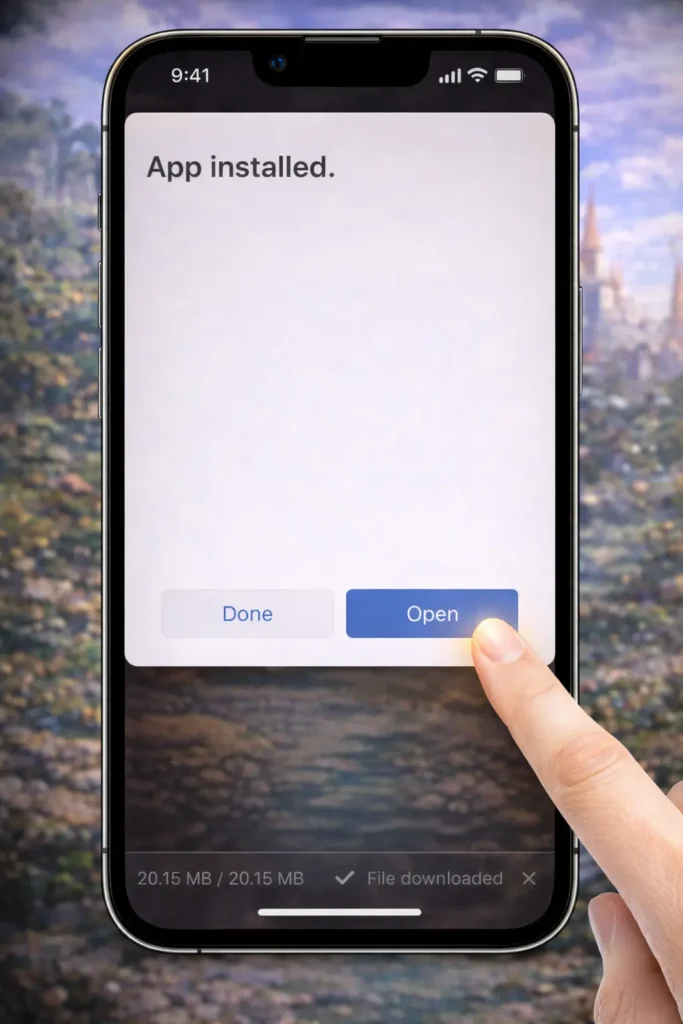
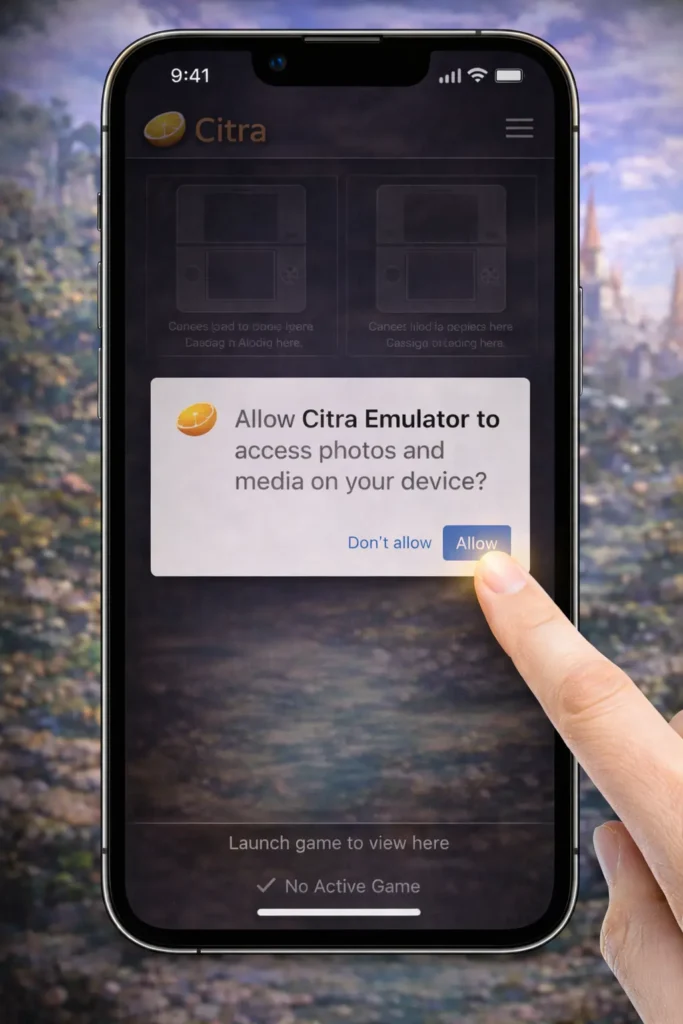
Step 4: Allow Required Permissions
Open Citra after installation and allow storage permissions when prompted. These permissions are necessary to scan and load your game files. Without storage access, games will not appear inside the emulator.
Step 5: Launch Citra Emulator
Open Citra from your app drawer or home screen. The emulator will launch successfully and complete its first-time setup.
Citra is now ready to use on your Android device.
How to Fix “App Not Installed” or Installation Errors on Android?
Installation errors are common on Android due to hardware or security restrictions. Most issues can be fixed by checking the points below.
- Enable Install Unknown Apps for the correct browser or file manager
- Make sure your device supports ARM64 architecture, as Citra does not run on ARM32
- Ensure enough free storage space before installing
- Re-download the APK if the file appears corrupted
- Restart your device and try installing again
What Should You Do on the First Launch of Citra on Android?
When you open Citra for the first time, the emulator will ask for basic permissions needed to function properly. You should grant storage access, choose a folder where your game files are stored, and allow Citra to scan and load the games.
No advanced configuration is required at this stage, making the first-time setup simple even for beginners.
How Can You Improve Citra Performance on Android?
Optimizing Citra on Android can significantly improve gameplay smoothness and reduce lag or crashes.
These tips are useful for both mid-range and high-end Android devices.
- Use a Snapdragon-based device if possible, as it generally offers better emulator performance than other chipsets.
- Lower the resolution scaling inside Citra settings if games feel slow or stutter during gameplay.
- Close background apps before launching Citra to free up RAM and CPU resources.
- Avoid playing while your phone is overheating, as thermal throttling can cause sudden FPS drops.
- Enable performance or gaming mode on your device if available to maintain stable frame rates.
Does Citra Support Controllers on Android?
Yes, Citra fully supports external controllers on Android devices, making gameplay more comfortable than touch controls alone. Most Bluetooth gamepads can be connected easily and mapped inside the Citra settings menu to match your preferred control layout.
For users without a controller, on-screen touch controls are enabled by default and work well for basic gameplay.