Citra Emulator allows users to play Nintendo 3DS games on PC and Android devices. Sometimes games feel slow, laggy, or not smooth at all. This usually happens because the emulator is not using the right settings.
In this article, you will learn which settings improve FPS and why those settings make games run better.
Quick Answer:
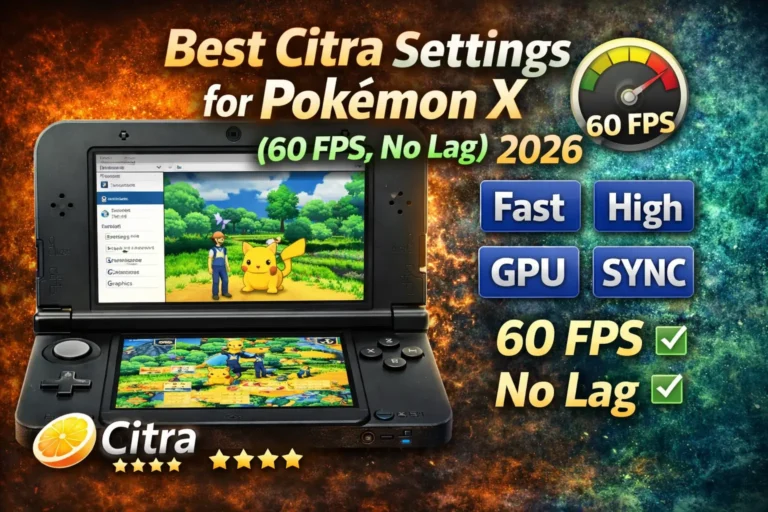
The best settings for Citra Emulator are the ones that reduce extra load on your system and focus on performance instead of perfect graphics. Using a lower internal resolution, enabling hardware shaders, turning on shader cache, and keeping accuracy options off helps games run faster and smoother. When these settings match your device’s power, FPS increases and gameplay feels stable and lag-free.
What Is Citra Emulator?
Citra Emulator is a program that lets you play Nintendo 3DS games on your computer or Android device. Instead of using a real 3DS console, Citra copies how the system works and runs the games on your screen. It is popular because it allows better screen size, smoother gameplay, and extra control options.
Why Does Citra Emulator Feel Slow Sometimes?
Citra Emulator can feel slow when your PC or mobile device does not have enough power to handle the game smoothly. Using wrong graphics settings, such as very high resolution or extra accuracy options, can also make the emulator work too hard and reduce FPS. Some games are heavy by design and need more CPU and GPU power to run well.
In addition, when you play a game for the first time, Citra loads shaders in the background, which can cause short stutters, but this usually improves after a few minutes of gameplay.
What Are the Minimum and Recommended System Requirements for Citra Emulator?
System requirements help you understand how well Citra will run on your device. If your system is weak, games may start but will not feel smooth. If your system is stronger, games will run better with stable FPS and less lag. Knowing this makes it easier to choose the right settings instead of guessing.
Minimum Requirements
At the minimum level, games can open and play, but performance is not stable. FPS may drop often, and graphics must stay low to avoid lag. This setup is usually fine for light games or testing purposes, but heavy games will struggle.
- CPU: A basic dual-core processor can run Citra, but it may feel slow during gameplay.
- RAM: 4 GB RAM is enough to start games, but multitasking can cause stutter.
- GPU: Integrated graphics can work, but visuals must stay simple.
Recommended Requirements
At the recommended level, Citra runs much smoother and feels more enjoyable. Games load faster, FPS stays stable, and lag is reduced. Most users get the best experience with this type of setup.
- CPU: A quad-core processor helps Citra handle games smoothly.
- RAM: 8 GB RAM allows stable gameplay without sudden slowdowns.
- GPU: A dedicated graphics card improves FPS and allows better resolution.
What Are the Best Citra Emulator Settings for FPS?
The table below shows the most important Citra settings in one place. These settings are chosen because they reduce extra load on your system and help games run smoother. Using these values makes Citra focus more on performance, which increases FPS and reduces lag.
|
Setting Name |
Best Value |
Why It Helps FPS |
|---|---|---|
|
Internal Resolution |
Native (1x) to 3x |
Lower resolution reduces GPU load and improves speed |
|
Graphics Renderer |
Vulkan (if available) |
Uses system resources more efficiently |
|
Hardware Shader |
Enabled |
Moves work from CPU to GPU for better performance |
|
Disk Shader Cache |
Enabled |
Reduces stutter after first gameplay |
|
Accurate Geometry |
Disabled |
Avoids extra processing that slows games |
|
Accurate Multiplication |
Disabled |
Improves FPS by reducing accuracy load |
|
VSync |
Disabled |
Removes FPS limit and improves smoothness |
|
Texture Filtering |
Disabled or Low |
Prevents unnecessary GPU usage |
What Are the Best Citra Emulator Settings for PC?
The best Citra settings for PC depend on how powerful your system is. A weaker PC needs lighter settings to avoid lag, while a stronger PC can handle better graphics without losing FPS. Using the right settings for your PC type helps games run smoothly and stay stable.
Best Citra Settings for Low-End PCs:
Low-end PCs have limited power, so Citra must be set in a way that reduces extra load. High graphics can easily slow down the system, which causes FPS drops and stutter. These settings focus on making games playable and stable.
Best Citra Settings for Mid-Range PCs:
Mid-range PCs can handle a balance between performance and visuals. These systems allow slightly better graphics while keeping gameplay smooth. The goal here is stable FPS with improved clarity.
Best Citra Settings for High-End PCs:
High-end PCs are powerful and can run games with high quality graphics and smooth FPS. These systems allow better resolution without performance loss. Even then, unnecessary accuracy options should be avoided.
Performance and stability also depend on installing Citra correctly for your platform.
Follow our step-by-step Citra Emulator Download to get the best results on Windows and Android.
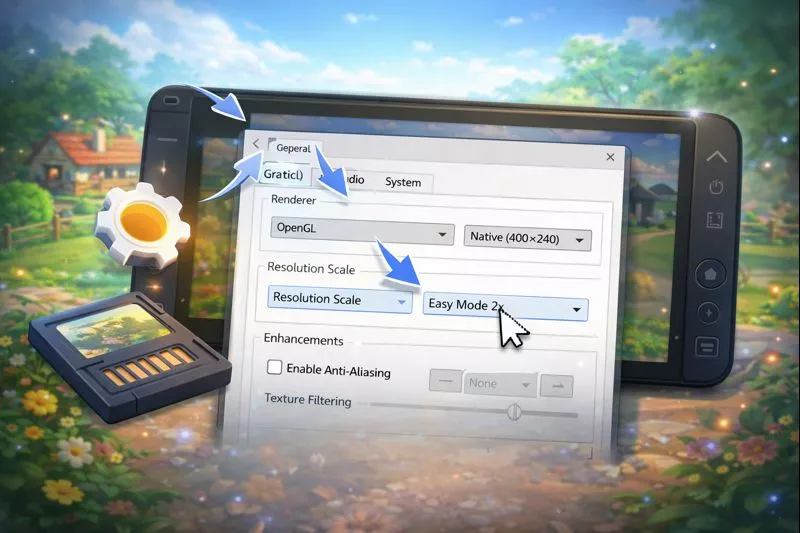
How Can You Set Citra Emulator Graphics Step by Step in Easy Mode?
Citra graphics settings directly control how the game looks and how smoothly it runs. If these settings are wrong, even a good PC can feel slow. This section explains each important graphics option in a simple way so you can change them without confusion.
Graphics Tab Settings:
The Graphics tab contains the main settings that affect performance the most. Changing these options correctly can quickly improve FPS and reduce lag. These are the first settings you should adjust.
- Internal Resolution: This controls how sharp the game looks. Lower resolution makes the game less clear but much faster, while higher resolution improves visuals but needs more power.
- Renderer (OpenGL / Vulkan): The renderer decides how graphics are drawn. Vulkan usually gives better performance on modern systems, while OpenGL works better on older or weaker hardware.
- VSync: VSync limits FPS to match your screen. Turning it off removes the limit and can increase FPS, but may cause screen tearing on some systems.
- Texture Options: High texture settings improve detail but use more GPU power. Keeping textures low or default helps maintain smooth gameplay.
Advanced Graphics Settings:
Advanced settings focus more on accuracy than speed. These options try to copy real 3DS behavior, but they can slow down performance. Most games do not need these settings to be enabled.
- Accurate Options: Options like accurate geometry and accurate multiplication should be disabled because they increase system load and reduce FPS.
- Shader Settings: Shader cache should always be enabled because it saves compiled shaders and reduces stutter during gameplay.
- When to Keep Settings OFF: If a game runs fine visually, advanced accuracy options should stay off. They should only be enabled when a game has visible glitches.
What Are the Best Citra Emulator Settings for Android to Boost FPS?
Android devices have less power compared to PCs, so Citra needs lighter settings to run smoothly. High graphics can quickly cause lag, heat, and battery drain. Using simple and balanced settings helps improve FPS and keeps gameplay stable on mobile devices.
- Best Resolution for Mobile: Keep the internal resolution at 1x or 2x. Higher resolution looks better but can cause FPS drops on most phones.
- Graphics Backend: OpenGL is usually more stable on Android and works well on a wide range of devices. Vulkan can be tested, but results may vary depending on the phone.
- Shader Cache Option: Shader cache should be enabled to reduce stutter after the first few minutes of gameplay. It helps the emulator remember shaders instead of loading them again.
- Battery vs Performance Balance: Performance mode gives smoother gameplay but uses more battery, while battery-saving mode reduces power use but may lower FPS. For gaming, performance mode is the better choice.
How Can You Boost Citra Emulator Performance on PC?
Sometimes Citra feels slow even when the emulator settings are correct. This happens because the problem is outside the emulator, not inside it. Small system-level changes can free up power and help games run smoother without touching graphics options.
Which Citra Emulator Builds and Forks Are Best for Performance?
A Citra build is simply a version of the emulator. Some builds are newer and better optimized, while others are older and slower. Newer builds usually run games more smoothly because they fix bugs, improve shader handling, and reduce stutter. This is why two people using Citra can get different FPS even with similar settings.
Some builds or forks run faster because they focus more on performance instead of extra features. The best choice for FPS is an updated and actively maintained build. Always download builds only from trusted and official sources, because unsafe files can cause crashes, poor performance, or security problems.
Why Do Some Games Perform Differently on Citra Emulator?
Not every game uses the same level of graphics and system power, which is why performance can change from game to game. Some titles are designed to be light and simple, while others push the hardware much harder. Because of this, game-specific behavior plays a big role in how smooth Citra feels.
Pokémon games are usually light
Most Pokémon games do not use heavy 3D effects, so they run smoothly on Citra even with basic settings. This makes them easier to play on mid-range or weaker systems.
Heavy 3D games need lower settings
Games with complex 3D environments use more CPU and GPU power. Lowering resolution and visual options helps keep FPS stable in these titles.
Some games stress the emulator more
Certain games rely on advanced effects or detailed scenes, which makes Citra work harder. These games may lag even when others run fine.
Small tweaks can fix performance issues
Adjusting a single setting, such as resolution or renderer, can greatly improve smoothness. This is why testing settings per game often gives better results.
Conclusion:
Getting smooth gameplay on Citra Emulator is mostly about using the right settings for your device. When graphics options match your PC or Android power, FPS stays stable and lag is reduced. Starting with simple settings and increasing quality slowly gives the best results. It is also important to remember that different games behave differently, so small tweaks can make a big difference. With the correct setup and a little testing, Citra can run games smoothly and feel enjoyable to play.