Citra Emulator lagging is a common issue for many users on both mobile phones and PCs. You may notice slow gameplay, low FPS, or audio stuttering while playing 3DS games. This usually happens because emulation requires more system power than normal games, and not every device can handle it smoothly. In some cases, the problem is caused by incorrect settings or the game itself rather than your device.
Quick Answer:
Citra Emulator usually lags because your device does not have enough CPU or GPU power, the emulator settings are too high, or you are using an outdated version of Citra. Background apps, device overheating, and certain 3DS games that are hard to emulate can also cause performance issues.
Why Is Citra Emulator Lagging on My Device?
Citra Emulator may lag because emulating Nintendo 3DS games needs more system power than normal games. If your device hardware is limited, emulator settings are too high, or the Citra version is not optimized, performance can slow down. Background apps and certain games that are harder to emulate can also cause lag.
Main Reasons Why Citra Emulator Lags:
Citra Emulator lag usually happens when your device cannot handle the workload of emulating Nintendo 3DS games. Performance also depends on the emulator version, system settings, and how demanding the game is. Below are the most common reasons that cause lag.
1. Low or Incompatible Hardware:
Citra Emulator requires more processing power because it runs Nintendo 3DS games through emulation, not natively. If your device has a weak CPU or limited GPU support, it struggles to maintain smooth performance. This often results in low FPS, slow game speed, or delayed input response. Budget and older devices usually face this issue more than newer or high-end systems.
2. Wrong Emulator Settings:
Emulator settings play a big role in performance. High internal resolution increases graphic load, which can slow down weaker devices. V-Sync may limit frame output if your system cannot keep a stable frame rate. Audio settings also consume resources, and incorrect configuration can cause stuttering or lag during gameplay.
3. Outdated or Wrong Citra Version:
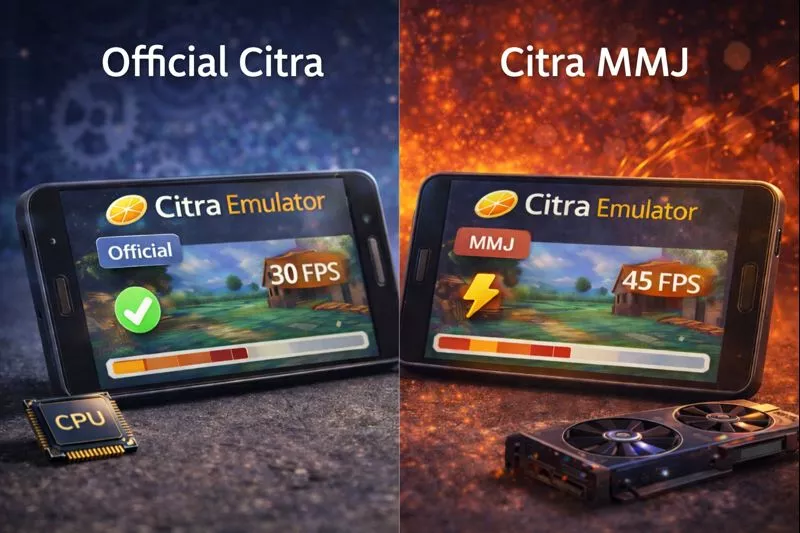
Using an old version of Citra can lead to poor performance because it may lack optimizations and bug fixes. Some builds are designed mainly for stability, not speed. On Android, the official version may run slower on certain devices compared to optimized builds like MMJ. Keeping the right and updated version helps improve overall performance.
4. Background Apps & System Load:
When multiple apps run in the background, they use CPU power and RAM needed by Citra. This reduces the resources available for the emulator. If the device becomes too warm, it automatically lowers performance to protect the hardware. Battery saver or power-saving modes can also limit performance and cause lag.
5. Game-Specific Performance Issues:
Not all Nintendo 3DS games are equally optimized for emulation. Some games use complex graphics, effects, or shaders that require more system power. These games may lag even if other titles run smoothly on the same device. In such cases, the issue is related to game compatibility rather than your setup.
Quick Checks Before Fixing Lag:
Before making advanced changes, it is important to check a few basic things first. Many performance issues are caused by temporary system load or simple mistakes. These quick checks can help identify the problem easily.
- Close background apps: Free up RAM and CPU so Citra can use more system resources.
- Restart your device: Clears temporary issues and refreshes system performance.
- Update Citra: New versions often include performance improvements and bug fixes.
- Test another game: Helps confirm whether the lag is caused by the game or the emulator.
7 Proven Fixes for Citra Emulator Lag
If you’re experiencing lag while using Citra emulator, don’t worry—most performance issues can be resolved with the right adjustments. Here are seven proven fixes that will help you eliminate stuttering, boost FPS, and enjoy smoother gameplay.
1. Update Citra to the Latest Version
Running an outdated version of Citra is one of the most common causes of lag and poor performance.
Why it works: Developers regularly release updates that include performance optimizations, bug fixes, and compatibility improvements for newer games.
How to update:
- Open Citra emulator
- Go to Emulation > Configure > General
- Click “Check for Updates” or download the latest version from the official Citra website
- For Android users, update Citra through the Google Play Store
2. Adjust Graphics Settings for Better Performance
Citra’s graphics settings have a significant impact on performance. Tweaking these settings can dramatically reduce lag.
Recommended settings for low-end devices:
- Resolution: Set internal resolution to 1x Native (400×240)
- Graphics API: Switch between OpenGL and Vulkan to see which performs better on your system
- V-Sync: Disable V-Sync to reduce input lag
- Texture Filter: Set to “None” for maximum performance
- Anisotropic Filtering: Disable or set to 2x
How to access graphics settings:
- Navigate to Emulation > Configure > Graphics
- Apply the recommended settings above
- Test your game and adjust incrementally
For higher-end systems: You can gradually increase resolution and enable shader options once you achieve stable 30 FPS.
3. Enable Hardware Shader and Shader JIT
Hardware acceleration significantly improves Citra’s performance by offloading processing tasks to your GPU.
Steps to enable:
- Go to Emulation > Configure > Graphics
- Check “Enable Hardware Shader”
- Check “Accurate Shader Multiplication”
- In the Advanced tab, enable “Use Disk Shader Cache”
What this does: These settings allow Citra to compile and store shaders, reducing stuttering during gameplay. The first time you play a game, you may experience some shader compilation stuttering, but this will improve in subsequent sessions.
4. Optimize CPU Emulation Settings
Proper CPU emulation configuration can eliminate lag caused by processing bottlenecks.
Recommended CPU settings:
- Go to Emulation > Configure > System
- CPU Clock Speed: Set to 100% (default) or try 25-50% for demanding games
- CPU JIT: Ensure this is enabled (it should be by default)
- Enable CPU JIT: This should always be checked for better performance
For multi-core processors:
- While Citra doesn’t fully utilize multiple cores, ensure your system isn’t running unnecessary background applications that compete for CPU resources
5. Close Background Applications and Processes
Running too many programs simultaneously can starve Citra of essential system resources.
What to close:
- Web browsers with multiple tabs (especially Chrome)
- Video streaming services
- Game clients (Steam, Epic Games, etc.)
- Cloud sync services (OneDrive, Google Drive)
- Antivirus real-time scanning (temporarily, if safe to do so)
How to check:
- Windows: Press Ctrl + Shift + Esc to open Task Manager and end unnecessary processes
- macOS: Press Cmd + Space, type “Activity Monitor,” and quit resource-heavy apps
- Android: Clear recent apps and disable battery-draining background services
Quick tip: Disable Windows Game Bar and Game Mode, as these can sometimes interfere with emulation performance.
6. Disable Audio Stretching
Audio stretching can cause significant lag and desync issues in Citra.
How to disable:
- Navigate to Emulation > Configure > Audio
- Uncheck “Enable Audio Stretching”
- Set Audio Emulation to “LLE (Accurate)” or “HLE (Fast)” depending on your system
Trade-off: Disabling audio stretching may cause minor audio crackling if your system can’t maintain full speed, but it generally improves overall performance and reduces input lag.
Alternative: If you experience audio issues after disabling stretching, try switching between LLE and HLE audio emulation modes.
7. Update Graphics Drivers and System Software
Outdated graphics drivers are a major cause of emulation lag and graphical glitches.
For NVIDIA users:
- Visit nvidia.com/drivers or use GeForce Experience to download the latest drivers
- Ensure you’re using the Game Ready drivers, not Studio drivers
For AMD users:
- Download the latest Adrenalin drivers from amd.com/support
- Use the AMD Software to enable performance-boosting features
For Intel integrated graphics:
- Visit intel.com/support and download the latest graphics drivers
- Intel graphics may struggle with Citra; consider using lower graphics settings
Android users:
- Keep your device’s system software updated through Settings > System > System Update
- Ensure you’re running Android 8.0 or higher for optimal Citra performance
Additional system optimization:
- Update Windows to the latest version
- Ensure DirectX and Visual C++ redistributables are up to date
- For Linux users, update Mesa drivers for better OpenGL/Vulkan support
To prevent these issues you can download Citra MMJ for Android from citraemulator.org safely.
Bonus Tip: Use Citra Canary for Experimental Features
Citra Canary is the bleeding-edge version of Citra that includes the latest features and optimizations before they’re added to the stable release.
When to use Canary:
- If the stable version isn’t performing well
- If you want access to the newest performance improvements
- If your specific game has known issues in the stable build
By implementing these seven fixes, you should see a significant improvement in Citra’s performance. Start with the easiest solutions (updating Citra and adjusting graphics settings) and work your way through the list until you achieve smooth, lag-free gameplay.
What Are the Best Settings to Fix Citra Lag?
Using the right settings can greatly improve Citra emulator performance. High graphics options often cause lag, especially on weaker devices. Adjusting a few key settings helps balance speed and gameplay smoothness.
Android:
PC (Windows):
Citra Official vs Citra MMJ – Which Is Better for Performance?
On Android devices, the version of Citra you use can strongly affect performance. Both Official Citra and Citra MMJ are popular, but they are built with different goals in mind. Understanding how they differ helps you choose the better option for your device.
Citra MMJ:
Citra MMJ is optimized for speed and higher FPS, especially on low-end and mid-range phones. It uses aggressive performance tweaks that reduce lag in many games. However, these optimizations can sometimes cause bugs or crashes.
Official Citra:
Official Citra focuses on accuracy and long-term stability. It receives regular updates and better compatibility support. While it runs more reliably, performance may feel slower on weaker devices compared to MMJ.
Which One Should You Use?
If your phone struggles with lag and low FPS, Citra MMJ is usually the better choice. For newer or more powerful devices, Official Citra offers a smoother and more stable experience. The best option depends on your device and performance needs.
Why Does Citra Lag Even on Powerful Devices?
Even high-end devices can experience lag while running Citra Emulator. This happens because emulation depends on more than just raw hardware power. Software limitations, system behavior, and game compatibility all affect performance.
Emulator Optimization Limits
Citra is still under development and not fully optimized for every device. Some parts of emulation are very demanding and cannot fully use modern hardware. Because of this, even powerful systems may struggle in certain situations.
Driver Issues
Graphics drivers play an important role in emulator performance. Outdated or poorly optimized drivers can cause frame drops and stuttering. This is common on Android devices where GPU drivers vary by manufacturer.
Thermal Throttling
During long gaming sessions, devices can heat up quickly. To protect the hardware, the system reduces performance automatically. This sudden drop in power often causes lag and unstable frame rates.
Poorly Optimized Games
Some Nintendo 3DS games are harder to emulate than others. Games with complex graphics or effects may not be fully optimized in Citra. As a result, these games can lag even on strong devices.
Conclusion:
Citra Emulator lagging is usually caused by a mix of hardware limits, emulator settings, and game compatibility. Even powerful devices can face issues due to optimization limits, driver problems, or overheating. By understanding the main reasons and using the right Citra version and settings, most lag problems can be reduced. With proper setup and realistic expectations, you can get the best possible performance from Citra Emulator.