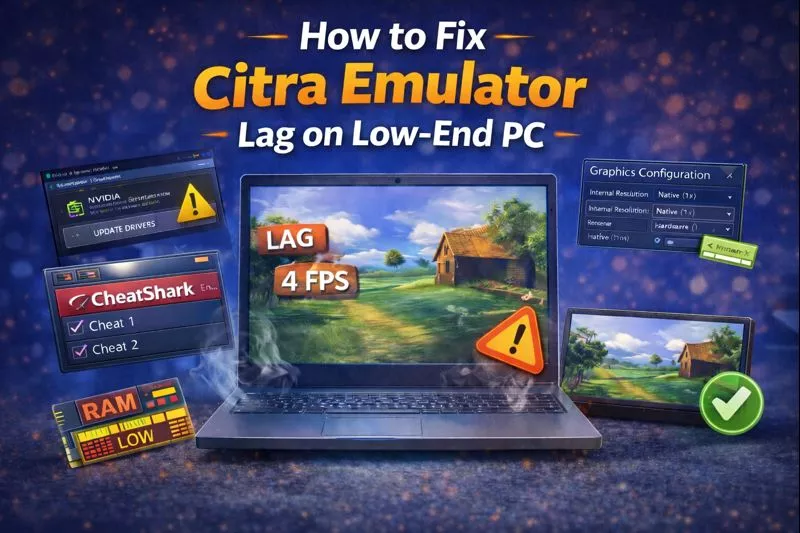
Citra is one of the most popular Nintendo 3DS emulators for PC, but it often lags on low-end computers. Many users face problems like low FPS, stuttering, freezing, or delayed sound. The good news is that you don’t need a powerful PC to fix most of these issues. With a few simple settings and small system changes, you can greatly improve Citra’s performance.
Quick Answer:
To fix Citra emulator lag on a low-end PC, first enable Hardware Shader and Shader JIT in the graphics settings. Then turn V-Sync OFF and set the Internal Resolution to Native or 2x for better FPS. Close unnecessary background apps and use the High Performance power plan in Windows. These easy changes fix lag, stuttering, and FPS drops for most users.
Why Does Citra Emulator Lag on Low-End PCs?
Citra emulator lags on low-end PCs because emulation needs more power than normal PC games. The emulator has to recreate the Nintendo 3DS system using software, which puts heavy pressure on the CPU. Low-end computers have limited processing power and weak graphics, so they struggle to keep up. This results in low FPS, stuttering, and freezing during gameplay.
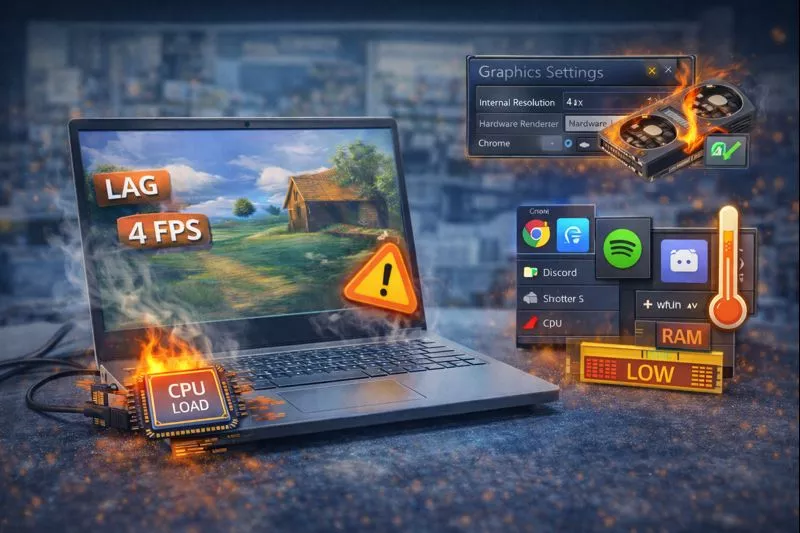
Main Reasons for Citra Lag:
How Can I Fix Citra Emulator Lag Step by Step?
Now that you understand why Citra emulator lags on low-end PCs, it’s time to fix the problem. You don’t need a high-end computer, because small setting changes can greatly improve performance and FPS. Each fix focuses on reducing system load and making the emulator run smoother. Follow these steps one by one, as step-by-step fixes work better and clearly show which change improves performance the most:
Step 1: Change Citra Graphics Settings
Changing the graphics settings in Citra helps reduce lag and improve FPS on low-end PCs. All important performance options are available inside the emulator, so you do not need any extra tools. By reaching the correct settings menu, you can easily control how much load Citra puts on your system. These small changes can make a big difference in gameplay smoothness.
Steps to Access Citra Graphics Settings:
- Open the Citra emulator on your PC and wait for the main window to fully load.
- Click on Emulation from the top menu bar and then select Configure from the dropdown list.
- When the settings window opens, click on the Graphics tab to access visual and performance options.
- Scroll down and open the Advanced section to see more detailed performance-related settings.
- Look for options like Hardware Shader, Shader JIT, V-Sync, and Internal Resolution, which directly affect FPS and lag.
Step 2: Enable Hardware Shader for Better Performance
Hardware Shader is a setting in Citra that lets your graphics card do most of the graphics work instead of the CPU. This reduces pressure on the processor and helps the emulator run faster. On low-end PCs, the CPU is usually weak, so moving work to the GPU improves performance. That is why enabling Hardware Shader is very important for smooth gameplay.
Benefits of enabling Hardware Shader:
Steps to enable Hardware Shader:
- Open the Citra emulator on your PC and make sure it is fully loaded before changing any settings.
- Click on Emulation in the top menu bar and select Configure to open the settings window.
- In the settings menu, click on the Graphics tab to access all graphics-related options.
- Scroll down and open the Advanced section where performance settings are located.
- Find the Hardware Shader option and turn it ON, then close the settings to apply changes.
Step 3: Enable Shader JIT to Reduce Stuttering
Shader JIT is a feature in Citra that compiles game shaders faster while the game is running. Instead of processing shaders slowly every time, it prepares them in advance to reduce delays. This helps prevent sudden pauses when new graphics appear on the screen. On low-end PCs, Shader JIT plays a big role in making gameplay feel smoother.
Benefits of enabling Shader JIT:
Where to enable Shader JIT:
- Open the Citra emulator and click Emulation from the top menu.
- Select Configure to open the settings window.
- Go to the Graphics tab and scroll to the Advanced section.
- Find the Shader JIT option and turn it ON to apply the change.
Step 4: Turn V-Sync OFF for Better FPS
For low-end PCs, V-Sync should always be turned OFF in Citra. While it is meant to reduce screen tearing, it also slows down performance. On weak systems, V-Sync makes the emulator feel heavy and less responsive. Turning it off usually gives an instant FPS boost.
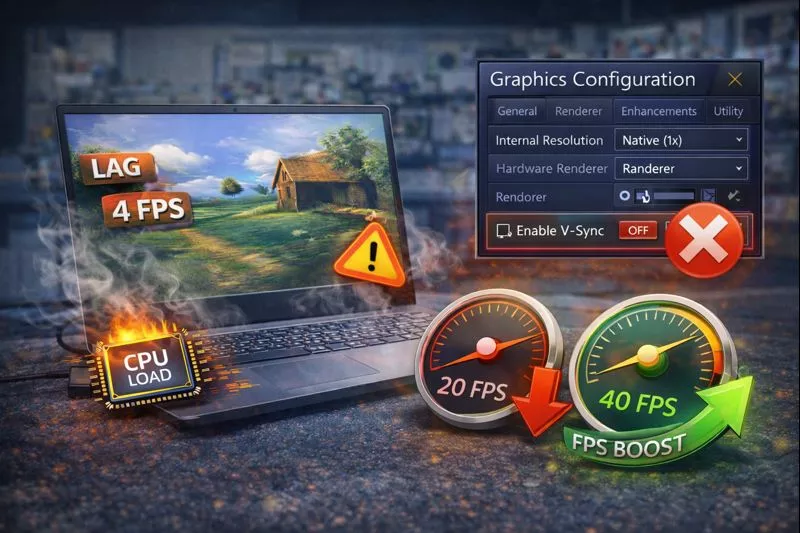
Reasons to turn V-Sync OFF:
How to disable V-Sync in Citra:
- Open the Citra emulator and wait for the main window to load.
- Click on Emulation from the top menu and select Configure.
- Go to the Graphics tab where visual settings are shown.
- Find the V-Sync option and turn it OFF, then save the settings.
Step 5: Set Internal Resolution to Native or 2x
Internal resolution has a direct effect on FPS and overall performance in Citra. Higher resolution means sharper graphics, but it also puts more load on the CPU and GPU. Low-end PCs cannot handle high resolution smoothly, which causes lag and FPS drops. For best results, smooth gameplay should always be preferred over visual quality.
Recommended resolution settings for low-end PCs:
- Very weak PC: Use Native (400×240) to get the highest possible FPS and stable performance.
- Weak PC: Use 2x Native for slightly better visuals while keeping gameplay smooth.
- Medium PC: Use 3x Native, but test first because it may cause FPS drops on some systems.
- Goal: Always aim for stable 30–60 FPS at 100% speed instead of higher resolution.
Step 6: Close Unnecessary Background Programs
Background programs use CPU and RAM even when you are not actively using them. On low-end PCs, this reduces the power available for Citra and causes lag. Closing unnecessary apps helps free system resources and improves FPS. This is one of the easiest ways to boost performance without changing emulator settings.
Programs you should close before running Citra:
Step 7: Change Windows Power Plan to High Performance
Windows power plans control how much power your CPU is allowed to use. On low-end PCs, the default Balanced mode limits performance to save battery or energy. This can cause emulators like Citra to run slowly. Using the right power plan helps the emulator run more smoothly.
How power plan settings affect Citra:
Step 8: Update Your Graphics Card Drivers
Graphics card drivers help your PC communicate properly with games and emulators. If drivers are old, Citra may not work smoothly and can lag or crash. Outdated drivers also fail to use the full power of your GPU. Updating them improves compatibility and overall performance.
Ways to update graphics card drivers:
- Update drivers using Device Manager by checking for updates under Display Adapters.
- Download and install the latest drivers from the official NVIDIA, AMD, or Intel website.
- Updated drivers fix performance bugs and help Citra run faster and smoother.
Step 9: Use Best Settings for Pokémon Games
Pokémon games are the most popular titles played on Citra emulator. These games usually run well, even on low-end PCs, if the correct settings are used. Small changes in graphics options can greatly improve FPS and reduce lag. Using recommended settings helps make gameplay smooth and stable.
Recommended settings for Pokémon games on Citra:
These settings work well for:
Pokémon X, Pokémon Y, Omega Ruby, Alpha Sapphire, Sun, and Moon.
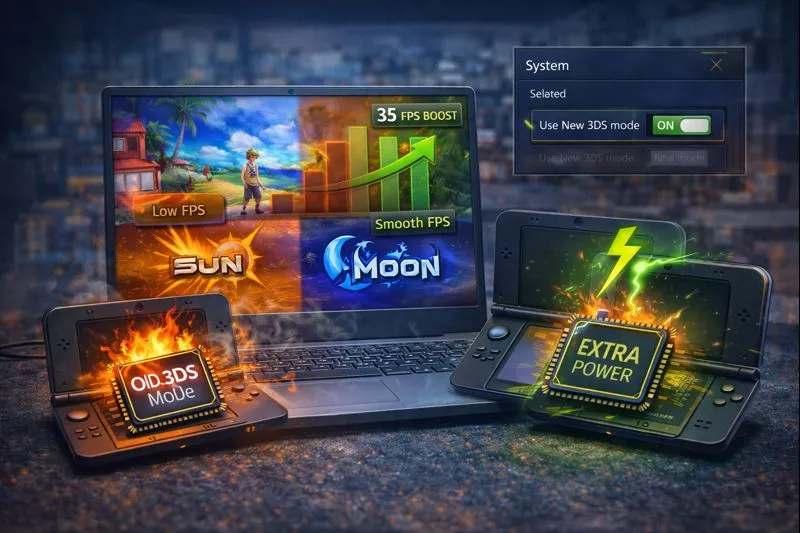
Step 10: Enable ‘Use New 3DS’ Mode When Needed
New 3DS mode is a feature in Citra that gives extra power to supported games. It allows the emulator to use more system resources for better performance. This can help reduce lag and improve smoothness on some games. It is safe to use and does not break gameplay.
Step 11: Keep Your Computer Clean and Cool
Yes, cleaning your computer can help reduce lag because heat affects performance. When a PC gets too hot, it slows itself down to avoid damage. This slowdown is called throttling and it causes FPS drops and stuttering. Keeping your computer cool helps Citra run more smoothly.
- Dust blocks airflow inside the PC, so removing dust with compressed air helps lower heat.
- Keeping air vents open allows hot air to escape and improves cooling.
- Using a cooling pad helps laptops stay cooler during long gaming sessions.
- Overheating causes throttling, which directly leads to lag and poor performance.
To prevent these issues you can download Citra MMJ for Android from citraemulator.org safely.
What If Citra Still Lags After All Settings?
Sometimes Citra still lags because a low-end PC has hardware limits that settings cannot fully fix. Emulation needs a certain level of CPU power, and very weak systems may struggle no matter what. Some games are also harder to run than others. In such cases, users need to understand the limits and choose the best possible option.
Check Minimum System Requirements
If your PC does not meet Citra’s minimum requirements, lag can still happen after all settings. At least 4GB RAM and OpenGL 3.3 support are needed for basic performance.
Try Different Citra Versions
Different Citra versions work differently on low-end PCs. Sometimes an older or alternate build runs smoother than the latest one.
Some Games Are Heavier Than Others
Not all 3DS games need the same power to run. Heavier games will always lag more on weak PCs, even with best settings.
Consider a Hardware Upgrade
If lag still exists, your PC hardware may be the main limit. Upgrading RAM or using a better CPU can greatly improve Citra performance.
Conclusion:
Citra emulator lag on a low-end PC can usually be fixed with the right settings and small system changes. Enabling Hardware Shader, turning V-Sync off, lowering resolution, and closing background apps help improve FPS. Keeping drivers updated and the PC cool also improves performance. Some games need more power, so results may vary. Try each fix step by step for the best experience.
Frequently Asked Questions
Does Citra use all CPU cores or only one core?
Citra mainly depends on single-core CPU performance, not all cores equally. That is why CPUs with strong single-core speed perform better even if they have fewer cores.
Why does Citra lag more during battles or cutscenes?
Battles and cutscenes use more graphics effects and animations. This sudden load increase causes FPS drops on low-end PCs.
Can SSD improve Citra emulator performance?
An SSD does not increase FPS directly, but it reduces loading times and shader stutter. Games feel smoother compared to running Citra on an HDD.
Does antivirus software affect Citra performance?
Some antivirus programs scan files in real time and use CPU in the background. This can reduce performance and cause stuttering during gameplay.
Is fullscreen mode faster than windowed mode in Citra?
Fullscreen mode can give slightly better performance on some systems. It also reduces background distractions and feels smoother during gameplay.
Why does Citra lag the first time I play a game but improve later?
Citra builds shader cache during the first gameplay session. After shaders are cached, the game usually runs smoother next time.
Can running Citra as administrator improve performance?
Running Citra as administrator does not increase FPS directly. However, it can help avoid permission issues that may cause crashes or instability.
Is Citra lag worse on laptops than desktop PCs?
Laptops often throttle performance due to heat and power limits. Desktops usually handle emulation better because of stronger cooling and higher power limits.